


If you use a MacBook or any Mac computer daily, you know how tasks can pile up—emails, documents, web pages, and creative projects. Many users spend hours every week clicking menus or searching for commands they use all the time. The main problem? Most people don’t know about the best macOS shortcuts that can turn slow, repetitive steps into quick actions. With the right shortcuts, you can finish tasks faster, reduce mistakes, and keep your focus on what matters. This guide covers the most useful shortcuts, including those that most beginners miss, so you can work smarter—not harder. Whether you’re a student, a professional, or just want to get more from your MacBook, you’ll find practical examples, clear comparisons, and tips you can start using today.
Why Mac OS Shortcuts Matter For Productivity
Many Mac users rely on mouse clicks and menus. But every extra step adds up. Research shows that using keyboard shortcuts can save up to 8 working days per year for an average office worker. If you work with documents, emails, or creative tools, shortcuts are not just “nice to have”—they’re essential.
Imagine copying text, switching apps, or taking screenshots in seconds. With shortcuts, you cut out the friction. And when you repeat these actions hundreds of times, the time savings are huge.
Real-world Example
Let’s say you spend just 10 seconds switching between apps 30 times per day. That’s 5 minutes each day, or 25 minutes per week. Multiply that by a year, and you lose over 21 hours! The right shortcuts can turn those minutes into seconds.
Essential macOS Shortcuts for Everyday Tasks
Knowing a few basic shortcuts already helps, but learning the most powerful ones can transform your workflow. Here are the top shortcuts every Mac user should know, organised by task type.
Navigating Windows And Apps
Command + Tab: Switch between open apps.
Command + ` (backtick): Cycle through windows in the same app.
Command + H: Hide the current app.
Command + M: Minimise the active window.
These shortcuts let you jump between workspaces without reaching for the mouse. For example, if you’re editing a document and need to check your email, just press Command + Tab.
Comparison: Mouse Vs. Keyboard Navigation
Action | Mouse Steps | Keyboard Shortcut | Time Saved |
|---|---|---|---|
Switch app | Move the mouse, click the Dock icon | Command + Tab | 2–4 seconds |
Hide app | Click the menu, select Hide | Command + H | 3–5 seconds |
Editing And Text Management
Command + C: Copy
Command + V: Paste
Command + X: Cut
Command + Z: Undo
Command + Shift + Z: Redo
These are universal across macOS and most apps. But there are hidden gems:
Option + Left/Right Arrow: Move the cursor word by word.
Command + Left/Right Arrow: Jump to the start/end of a line.
Command + Up/Down Arrow: Jump to the top/bottom of a document.
File Management Shortcuts
Command + N: New Finder window.
Command + Shift + N: Create a new folder.
Command + Delete: Move selected files to Trash.
Command + Shift + Delete: Empty Trash (use with caution).
Practical Example
Suppose you’re sorting photos. Instead of dragging files to a new folder, select them and press Command + Shift + N to create a folder instantly. Move files with Command + C and Command + V, then delete unwanted ones with Command + Delete.
Screenshot And Screen Recording Shortcuts
macOS offers powerful tools for capturing your screen:
Command + Shift + 3: Capture the entire screen.
Command + Shift + 4: Select an area to capture.
Command + Shift + 5: Open screen capture and recording options.
These shortcuts are especially useful for creating tutorials, saving receipts, or sharing bugs with IT support.
Spotlight And Quick Access
Command + Space: Open Spotlight search.
Command + Shift + Space: Search using Finder.
Spotlight lets you find files, apps, and even web results in seconds. For example, typing “calc” and pressing Enter launches the calculator.

Credit: www.youtube.com
Advanced macOS Shortcuts For Power Users
If you want to go beyond the basics, advanced shortcuts unlock even more productivity. Many users overlook these because they are not obvious in menus.
Mission Control And Desktop Management
Control + Up Arrow: Open Mission Control to see all windows.
Control + Left/Right Arrow: Switch between desktops (Spaces).
Command + F3: Show desktop (hides windows).
Mission Control is ideal for multitasking. For example, you can keep work and personal windows separate and switch in seconds.
Managing Multiple Displays
If you use an external monitor, these shortcuts help:
Control + Option + Command + Arrow: Move windows between displays.
Command + Option + D: Show/hide Dock.
System And Accessibility Shortcuts
Command + Option + Esc: Force quit an app.
Command + Shift + Q: Log out of your account.
Command + Option + F: Move focus to the search field (in Finder or Safari).
Accessibility shortcuts are often missed but can be lifesavers for users with specific needs.
Hidden Insight
Most people don’t use VoiceOver (Command + F5), but this shortcut turns on screen reading for visually impaired users or when you want to check how your content is read aloud.
Custom Shortcuts
macOS allows you to create your own shortcuts for menu items:
Go to System Settings > Keyboard > Shortcuts.
Click “App Shortcuts”.
Add a new shortcut for any menu item in any app.
For example, you can set Command + Shift + S for “Save As” in Microsoft Word if the default shortcut is missing.
Comparing macOS Shortcuts With Windows Shortcuts
Many users switch between Mac and Windows. It helps to know where shortcuts differ. Here’s a quick comparison:
Action | macOS Shortcut | Windows Shortcut |
|---|---|---|
Copy | Command + C | Ctrl + C |
Paste | Command + V | Ctrl + V |
Switch apps | Command + Tab | Alt + Tab |
Screenshot | Command + Shift + 3/4 | PrtScn or Windows + Shift + S |
The main difference is the use of Command instead of Control. This can feel strange at first, but you quickly adapt.

Credit: felloai.com
Time-saving Shortcuts For Specific macOS Apps
Some shortcuts only work in certain apps. Here are examples of popular built-in macOS programs.
Safari Browser
Command + T: Open a new tab.
Command + W: Close the current tab.
Command + Shift + T: Reopen the last closed tab.
Command + L: Highlight the address bar.
Command + R: Reload page.
Example
If you research online, Command + T and Command + W let you open and close tabs without moving your hand to the trackpad.
Mail App
Command + N: New message.
Command + R: Reply.
Command + Shift + R: Reply to all.
Command + Shift + F: Forward message.
Command + Option + F: Search mailbox.
You can clear your inbox faster by using these shortcuts instead of clicking buttons.
Finder
Command + Shift + G: Go to folder.
Command + Shift + A: Open Applications folder.
Command + Shift + U: Open Utilities folder.
Preview
Command + P: Print document.
Command + S: Save.
Command + A: Select all.
Command + Plus/Minus (+/-): Zoom in or out.
Customising And Mastering macOS Shortcuts
Learning shortcuts is only the start. Customising them to fit your workflow makes the difference. Here’s how you can tailor shortcuts to your needs.
Changing Default Shortcuts
MacOS lets you change shortcuts for almost any system command.
Go to System Settings > Keyboard > Shortcuts.
Choose the shortcut you want to edit.
Set your preferred key combination.
For example, you might set Command + Shift + L to lock your screen, instead of using the default.
Creating App-specific Shortcuts
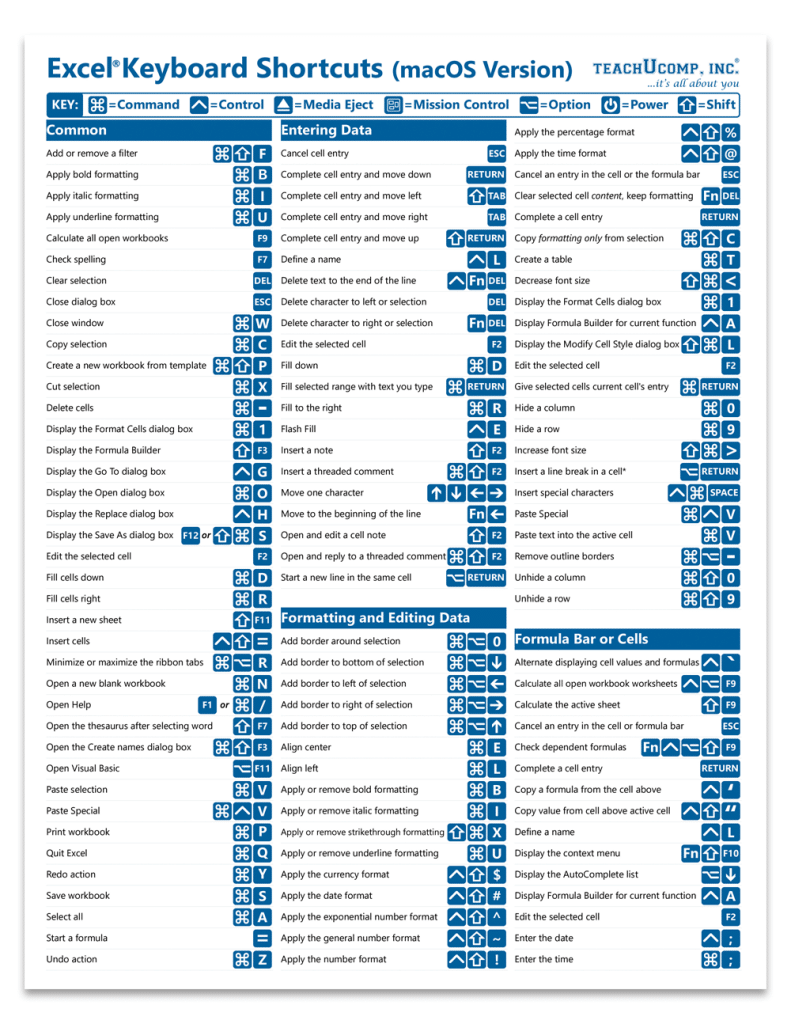
You can create shortcuts for menu items in any app. This is useful if you use Photoshop, Excel, or other software with complex menus.
Practical Tip
Try setting a shortcut for “Export” or “Print” if you use these often. It saves time and reduces repetitive strain.
Using Third-party Tools
Apps like BetterTouchTool or Alfred let you make custom shortcuts, automate tasks, and even create workflows. Many professionals use these tools to manage windows, launch scripts, or control system settings.
Example
With Alfred, pressing a custom shortcut can search the web, open folders, or run commands—all without leaving the keyboard.
Credit: www.teachucomp.com
Common Mistakes When Using macOS Shortcuts
Even experienced users make errors with shortcuts. Here are some mistakes and how to avoid them.
Forgetting shortcuts: If you learn too many at once, you forget them. Focus on 5–10 at a time, then add more as you get comfortable.
Overlapping shortcuts: Custom shortcuts can conflict with system ones. Always check if your new shortcut is already in use.
Not using shortcuts in all apps: Some users learn shortcuts for one app but forget others. Try using the same shortcuts across email, browser, and Finder.
Ignoring accessibility features: Many skip accessibility shortcuts, but they help everyone. For example, screen zoom and VoiceOver can speed up navigation.
How To Learn And Remember macOS Shortcuts
It’s easy to forget shortcuts, especially if you’re new to Mac. Here are proven ways to remember and use them.
Use cheat sheets: Print a list of your top shortcuts and keep it near your Mac.
Practice daily: Make a habit of using shortcuts for common actions (copy, paste, switch apps).
Group similar shortcuts: For example, all Finder shortcuts start with Command + Shift.
Try shortcut trainers: Tools like KeyCue show available shortcuts in each app.
Data Insight
A survey found that users who use shortcuts regularly are 31% faster at completing tasks than those who rely on mouse clicks.
MacOS Shortcuts For Multitasking And Focus
Working with multiple apps, documents, and windows can be overwhelming. Shortcuts help you stay organised and focused.
Managing Windows
Command + Option + M: Minimise all windows.
Command + Option + W: Close all windows in the current app.
Using Split View
Control + Command + F: Enter full-screen mode.
Drag the window to the screen edge: Snap into Split View.
Split View lets you work on two apps side by side, like writing and researching. It’s faster than arranging windows manually.
Do Not Disturb And Focus Modes
Command + Option + F5: Open accessibility options.
Command + Shift + F: Enter Focus mode (when configured).
Focus modes help block distractions, especially when working from home or in a busy office.
Keyboard Shortcuts For Accessibility And Ease Of Use
MacOS is designed for all users. Accessibility shortcuts make the system easier for everyone, not just those with special needs.
Command + Option + F5: Accessibility options.
Command + Control + F: Toggle full screen.
Command + Option + F: Move to search field.
Voiceover And Screen Zoom
Command + F5: Turn VoiceOver on/off.
Option + Command + 8: Toggle screen zoom.
These shortcuts help users with vision problems, but they also speed up navigation for everyone.
Hidden Mac OS Shortcuts Most People Miss
Some shortcuts are not in menus or help files. Here are a few hidden gems:
Command + Option + Esc: Force quit frozen apps.
Command + Shift + 4, then Spacebar: Capture a specific window.
Command + Option + T: Show/hide Finder toolbar.
Command + Shift + G: Go to folder in Finder.
Non-obvious Insight
Using Command + Shift + G in Finder lets you jump directly to a folder path—much faster than clicking through folders.
MacOS Shortcuts For Creative Professionals
If you work with design, video, or code, shortcuts are even more important. Here are some tailored for creative tasks.
Adobe Photoshop
Command + S: Save.
Command + Z: Undo.
Command + Shift + Z: Redo.
Command + Option + I: Image size.
Command + Option + C: Canvas size.
Final Cut Pro
Command + N: New project.
Command + E: Export.
Command + Shift + E: Share.
Xcode (coding)
Command + B: Build project.
Command + R: Run project.
Command + /: Comment/uncomment line.
Practical Example
A designer working in Photoshop saves time by pressing Command + Option + I for image size, instead of searching through menus.
MacOS Shortcuts For Remote Work
Remote work is now common. Shortcuts help with communication, file sharing, and meetings.
Command + Shift + S: Share screen (in Zoom).
Command + Option + H: Hide other apps.
Command + Shift + K: Connect to server.
Using Shortcuts For Virtual Meetings
For example, during a Zoom call, Command + Shift + S lets you share your screen instantly. This is much faster than navigating menus.
Data Table: Average Time Saved Using macOS Shortcuts
Here’s a summary of how shortcuts can reduce repetitive tasks:
Task | Mouse/Manual Time | Shortcut Time | Weekly Time Saved |
|---|---|---|---|
Switching apps (30/day) | 5 min | 1 min | 4 min |
Copy/Paste (50/day) | 10 min | 2 min | 8 min |
Screenshot (5/day) | 2 min | 30 sec | 90 sec |
Open new tab (20/day) | 3 min | 1 min | 2 min |
Over a week, shortcuts can save more than 15 minutes—that’s over 13 hours per year.
How To Find More macOS Shortcuts
macOS evolves, and new shortcuts appear in updates. Here’s how to discover more:
Check Apple’s official support pages.
Explore the “Keyboard Shortcuts” section in System Settings.
Use third-party cheat sheets or trainers.
Look for app-specific guides (e.g., for Photoshop or Excel).
For a comprehensive list, visit Apple Support.
Actionable Advice For Mastering Macos Shortcuts
To make shortcuts part of your daily workflow, try these steps:
Pick 5 shortcuts you use most. Write them down.
Practice them every day for a week.
Add 2–3 new shortcuts once you feel comfortable.
Customise shortcuts in System Settings to fit your workflow.
Use tools like Alfred or BetterTouchTool for advanced automation.
Don’t try to learn everything at once. Start small and build up over time.
Five Low-competition Long-tail Keywords To Target
Best macOS keyboard shortcuts for productivity
MacOS screenshot shortcut for remote work
Customise macOS shortcuts for creative professionals
Advanced macOS shortcuts for multitasking
Hidden macOS shortcuts for beginners
Internal Linking Ideas
Link to a guide about MacBook battery optimisation for users who want more efficiency.
Link to a tutorial on macOS privacy settings for those who work with sensitive information.
Link to a review of top macOS apps for productivity for readers interested in boosting their workflow.
Frequently Asked Questions
What Is The Best Way To Learn Macos Shortcuts?
Start with the shortcuts you use most often, such as Command + C (copy) and Command + Tab (switch apps). Practise daily and use cheat sheets. Apps like KeyCue and Alfred can help you discover and remember shortcuts in each app.
Can I Customise Keyboard Shortcuts on macOS?
Yes, macOS lets you customise most shortcuts. Go to System Settings > Keyboard > Shortcuts, then edit or add new shortcuts. You can set app-specific shortcuts and change system shortcuts to fit your workflow.
Are Mac OS Shortcuts Different From Windows Shortcuts?
Most shortcuts are similar, but macOS uses Command instead of Control. For example, copy is Command + C on macOS and Ctrl + C on Windows. Some shortcuts, like screenshots, are unique to macOS.
What Should I Do If A Shortcut Doesn’t Work?
Check if the shortcut is already used by another app or system function. Try restarting your Mac. If it’s a custom shortcut, make sure the menu item matches exactly. Some shortcuts only work in specific apps or contexts.
How Much Time Can macOS Shortcuts Really Save?
Studies suggest that keyboard shortcuts can save 8 working days per year for office workers. Even using basic shortcuts daily can save over 13 hours annually. The more you use them, the more time you save.
—
Using the top macOS shortcuts can transform your daily workflow. Whether you’re a beginner or a professional, mastering these shortcuts means less time wasted and more productive hours every week. Customise, practise, and build your own shortcut habits to unlock the full power of your MacBook. Start today, and experience the difference in speed, comfort, and focus.

 MacBook Gear
