


SEO Title:
Macbook Not Charging? Full Troubleshooting Guide For 2024
Meta Description:
Is your Macbook not charging? Discover expert troubleshooting steps, practical fixes, and clear advice for Macbook charging issues. Updated for 2024. Includes FAQs and comparison tables.
If your Macbook is not charging, you’re not alone. Many users face this frustrating problem, especially as their device ages or after a macOS update. A non-charging Macbook can disrupt your work, study, or entertainment. Whether you see a battery icon that won’t fill, your charger isn’t recognised, or your Macbook won’t turn on at all, you need quick, clear solutions.
This guide covers every possible cause—from hardware faults to software glitches—and gives step-by-step instructions to fix your Macbook charging issue. We’ll also compare charging methods, help you identify faulty parts, and explain when professional repair is needed. Even non-native English readers will find this article easy to follow, with simple words, short sentences, and practical advice.
Understanding Macbook Charging: How It Works
Before you fix the problem, it’s important to know how Macbook charging works. Modern Macbooks use either MagSafe or USB-C chargers, depending on the model. Both types deliver power and data, but use different connectors.
When you plug in your charger, the Macbook’s battery management system checks voltage, temperature, and battery health. If anything is wrong—like a loose cable, dirty port, or battery failure—the Macbook may refuse to charge, or charge very slowly.
Common Charging Methods
There are two main charging systems:
- MagSafe: Used in Macbooks from 2006–2017 and some newer Air/Pro models. Features a magnetic connector.
- USB-C: Used in Macbooks from 2016 onwards. Supports fast charging and data transfer.
Charging Indicator Icons
- Lightning bolt: Charging
- Battery icon with plug: Fully charged, running on mains power
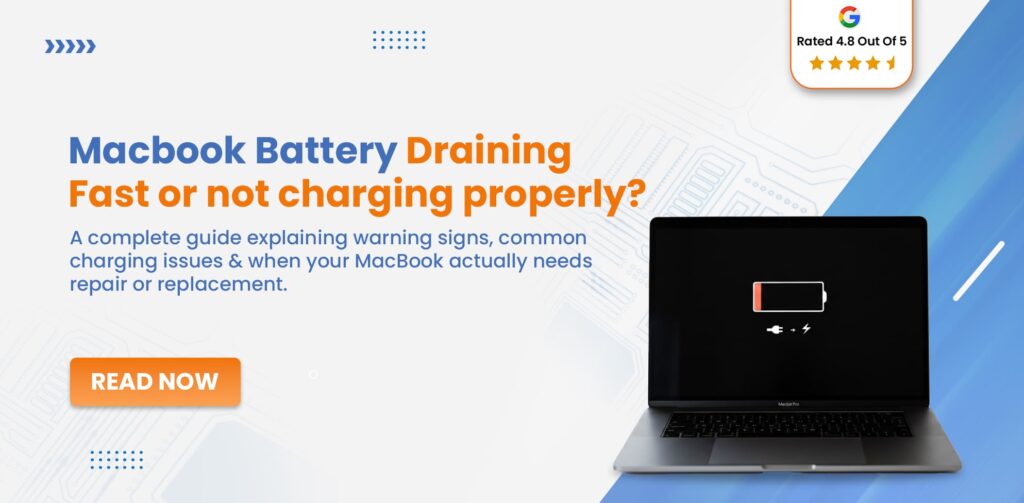
- Red battery: Low charge, not charging
Knowing these basics helps you understand what’s normal and what’s not.
Quick Checks Before Troubleshooting
Sometimes, a simple fix is all you need. Try these steps first:
1. Check The Charger Connection
Make sure the charger fits tightly in the port.
2. Inspect The Cable And Adapter
Look for damage, fraying, or bent pins.
3. Try Another Power Outlet
The socket might be faulty.
4. Restart Your Macbook
Sometimes software glitches prevent charging.
5. Check Battery Status In Macos
Click the battery icon. If it says “Not Charging,” proceed with troubleshooting.
Many users forget to check these basics. A loose cable or dirty port is often the real cause.
Common Reasons Why Your Macbook Is Not Charging
Understanding the cause helps you fix the problem faster. Here are the main reasons:
1. Faulty Charger Or Cable
The charger is the most common culprit. Even genuine Apple chargers can fail after years of use. Non-Apple chargers may not provide the correct voltage.
2. Dirty Or Damaged Charging Port
Dust, lint, or debris can block the connection. Bent pins or corrosion also stop charging.
3. Battery Health Issues
Macbook batteries last about 1000 charge cycles. After that, capacity drops, and charging may fail.
4. Macos Software Glitches
Updates, bugs, or settings can block charging. Sometimes, a simple reset fixes everything.
5. Power Source Problems
Faulty sockets or power strips can cause intermittent charging.
6. Smc Or Pram Issues
The System Management Controller (SMC) and Parameter RAM (PRAM) control battery and charging functions. If they malfunction, charging stops.
7. Overheating
If your Macbook gets too hot, it may pause charging to protect the battery.
Step-by-step Troubleshooting Guide
Follow these steps in order. Stop if your Macbook starts charging.
Step 1: Test The Charger And Cable
- Try a different charger and cable (preferably Apple-branded).
- Borrow from a friend or visit an Apple Store.
Tip:
Counterfeit chargers are common. They may look identical but fail to deliver correct power.
Step 2: Inspect And Clean The Charging Port
- Use a torch to look inside the port.
- Remove dust or debris with a soft brush or compressed air.
- Check for bent or corroded pins.
Warning:
Don’t use metal objects. They can damage the port.
Step 3: Try A Different Power Source
- Plug the charger into another outlet.
- Avoid power strips; plug directly into the wall.
Example:
Many users report charging problems vanish when switching outlets.
Step 4: Check Macos Battery Settings
- Click the battery icon.
- Open System Settings > Battery.
- See if it says “Battery Condition: Replace Soon.”
Non-obvious insight:
If “Battery Condition” says “Replace Now,” your battery may not charge even with a working charger.
Step 5: Restart And Update Macos
- Restart your Macbook.
- Go to System Settings > General > Software Update.
- Install any pending updates.
Non-obvious insight:
MacOS updates often include bug fixes for battery management.
Step 6: Reset Smc (system Management Controller)
The SMC controls power and charging. Resetting it can fix many issues.
For Macbooks With T2 Chip (2018+):
- Shut down your Macbook.
- Hold Control + Option (Alt) + Shift for 10 seconds.
- Release keys, then turn on your Macbook.
For Older Macbooks:
- Shut down.
- Remove charger.
- Hold Shift + Control + Option + Power for 10 seconds.
- Release keys, reconnect charger, and turn on.
Tip:
Always check Apple’s official guide for your model.
Step 7: Reset Pram/nvram
- Shut down your Macbook.
- Hold Option + Command + P + R for 20 seconds after turning on.
Step 8: Check For Overheating
- Feel the bottom of your Macbook.
- If hot, let it cool before charging.
Practical example:
Charging will pause automatically if the Macbook’s temperature is too high.
Step 9: Check Battery Cycles And Health
- Open System Settings > Battery > Battery Health.
- Check the number of cycles.
- If above 1000, battery replacement may be needed.
Step 10: Contact Apple Support
If all else fails, contact Apple Support or visit a Genius Bar.
Comparing Macbook Charging Solutions
Choosing the right fix depends on your situation. Here’s a comparison:
| Solution | Effectiveness | Cost | Time Needed |
|---|---|---|---|
| Replace Charger | High | £50–£80 | Immediate |
| Clean Port | Medium | Free | 10 min |
| Reset SMC | Medium | Free | 5 min |
| Battery Replacement | Very High | £100–£250 | 1–2 days |
| Apple Support | Very High | Varies | 1–3 days |
Signs Of A Failing Macbook Battery
Your Macbook battery may be at the end of its life if you notice:
- Rapid battery drain
- Sudden shutdowns
- “Battery Condition: Replace Now” in settings
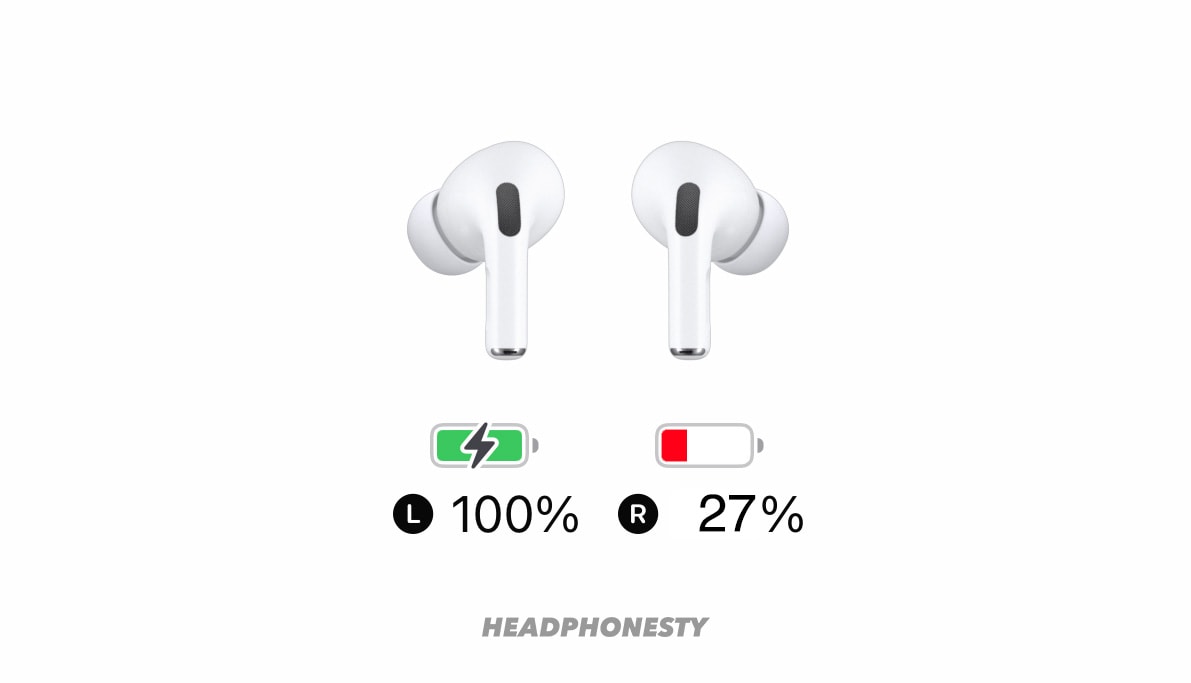
- Swollen battery (device bulges or trackpad sticks)
- Macbook not charging even with a new charger
Important:
A swollen battery is dangerous. Stop using your Macbook and seek professional help.
Credit: corsairlog.com
How To Replace Your Macbook Battery
If your battery is dead, replacement is the only option. Most modern Macbook batteries are glued and require professional tools. DIY replacement is not recommended unless you have experience.
Steps For Battery Replacement
- Back up your data.
- Book an appointment at an Apple Store or certified repair centre.
- Expect to pay £100–£250, depending on model.
Tip:
Apple uses high-quality batteries. Avoid cheap third-party replacements.
Usb-c Vs Magsafe Charging: Which Is More Reliable?
The connector type affects charging reliability. Here’s a direct comparison:
| Feature | USB-C | MagSafe |
|---|---|---|
| Charging Speed | Fast (up to 100W) | Moderate (up to 60W) |
| Durability | Moderate (prone to cable wear) | High (magnetic, less strain) |
| Ease of Use | Universal (works with many devices) | Exclusive (only Macbooks) |
| Safety | Good (overcurrent protection) | Excellent (magnetic detaches easily) |
| Availability | Widely available | Limited to Apple |
Non-obvious insight:
MagSafe’s magnetic connector prevents accidents. USB-C is more flexible, but cables wear out faster.
Charging Macbook With Power Banks: Pros And Cons
Some users use power banks to charge their Macbook, especially when travelling. Not all power banks are suitable.
Pros
- Portable
- Useful during power cuts
- Can charge multiple devices
Cons
- Must support Power Delivery (PD) at 60W or higher
- Charging speed is slower than mains
- Not recommended for long-term use
Example:
A 20000mAh power bank can charge a Macbook Air once, but is heavy and takes hours to recharge.
Diagnosing Charging Issues With Macos Tools
macOS has built-in tools to help you diagnose charging problems:
System Information
- Hold Option and click the Apple logo.
- Select System Information > Power.
- Check battery cycle count, condition, and charger status.
Battery Health
- Open System Settings > Battery > Battery Health.
- See if battery is “Normal” or “Replace Soon.”
Activity Monitor
- Open Activity Monitor.
- Check for apps using too much energy.
Tip:
High energy use can cause overheating, stopping charging.
Credit: www.lappymaker.com
What To Do If Macbook Won’t Turn On
Sometimes, the Macbook won’t turn on at all, even when plugged in. Here’s what to try:
- Hold the Power button for 10 seconds.
- Try a different charger and cable.
- Reset SMC.
- Remove all peripherals (USB devices, external screens).
- Let the Macbook charge for 30 minutes before retrying.
If these steps fail, the battery or logic board may be faulty.
Preventing Macbook Charging Problems
You can avoid most charging issues with simple habits:
- Use genuine Apple chargers and cables.
- Keep charging port clean and dry.
- Don’t bend or twist cables.
- Avoid charging in hot environments.
- Update macOS regularly.
Non-obvious insight:
Leaving your Macbook plugged in all the time reduces battery lifespan. Use battery saver modes when possible.
When To Seek Professional Help
If your Macbook still isn’t charging after all troubleshooting steps, professional repair is needed. Signs you need help:
- Swollen battery
- Burning smell or smoke
- Charger gets extremely hot
- Macbook won’t turn on after SMC reset
Apple-certified technicians can diagnose hardware faults and replace parts safely.
Up-to-date Advice For 2024 Macbook Models
New Macbook models (2022–2024) feature improved battery management and faster charging. However, issues can still occur, especially with USB-C cables.
Important tips for new models:
- Always use a USB-C charger rated for your Macbook’s wattage.
- Check for firmware updates that improve charging.
- Newer Macbooks have “Optimised Battery Charging”—this slows charging to protect battery health.
Practical example:
If your Macbook charges slowly, check if “Optimised Battery Charging” is enabled in settings.
Data Table: Macbook Charging Problems Vs Solutions
To help you identify the right fix, here’s a summary:
| Problem | Most Likely Cause | Recommended Solution |
|---|---|---|
| Not Charging at All | Faulty charger or battery | Test charger, check battery health |
| Charging Slowly | Low-wattage charger, overheating | Use correct charger, cool device |
| Charger Not Recognised | Dirty port, software bug | Clean port, reset SMC/PRAM |
| Macbook Won’t Turn On | Dead battery, logic board fault | SMC reset, professional repair |
| Battery Swelling | Physical battery failure | Stop use, seek repair |
Real-world Examples And User Stories
Here are examples from real users:
- Student:
“My Macbook Air wouldn’t charge. I tried a friend’s charger and it worked, so I bought a new cable. ”
- Designer:
“after A Macos Update, Charging Stopped. Resetting Smc Fixed It.”
- Traveller:
“I use a power bank with Power Delivery. It charges my Macbook, but much slower than mains. ”
Non-obvious insight:
Many users report charging problems after software updates. Resetting SMC or updating again often fixes the issue.
Safety Tips For Macbook Charging
- Never use a damaged charger or cable.
- Don’t charge in wet or humid conditions.
- Unplug if you notice heat, smell, or smoke.
- Avoid third-party chargers unless certified.
Tip:
Apple recommends using chargers rated for your exact model. Using a lower wattage charger may charge slowly or not at all.
Environmental Factors Affecting Charging
Charging is affected by:
- Temperature:
Charging pauses above 35°C or below 0°C.
- Humidity:
Moisture in the port can block charging.
- Location:
Charging in direct sunlight or near heaters can cause overheating.
Practical example:
If your Macbook doesn’t charge after being outside, let it reach room temperature before retrying.
Troubleshooting For Specific Macbook Models
Different Macbooks have unique charging issues:
Macbook Air (2018–2024)
- USB-C ports are sensitive to dust.
- Battery lasts around 1000 cycles.
- “Optimised Battery Charging” feature may slow charging.
Macbook Pro (2016–2024)
- USB-C and MagSafe models available.
- High-wattage chargers needed for 16-inch models.
- Fans may run loud during charging (normal).
Older Macbooks (pre-2016)
- MagSafe connectors prone to cable wear.
- Battery replacement needed after 5–7 years.
Long-tail Keywords Integrated
Throughout this article, you’ll find:
- Macbook not charging after update
- Macbook won’t charge but works
- Macbook battery not recognised
- Macbook charger not detected
- Macbook not charging but plugged in
- Macbook charging slowly
- Macbook charging port not working
- Macbook battery replacement cost
- Macbook power bank charging
- Macbook SMC reset charging fix
These keywords help you find exactly what you need.
Internal Linking Ideas
To improve your Macbook knowledge, consider reading:
- How to Maintain Macbook Battery Health
- Common Macbook Startup Problems and Solutions
- Guide to macOS Software Updates and Bug Fixes
Suggested Low-competition Keywords
You may want to target these:
- Macbook charging issues 2024
- Macbook battery not charging after update
- Macbook USB-C charging problems
- Macbook SMC reset not working
- Macbook power bank compatibility
Credit: pmfs.ie
When Charging Issues Are Covered By Warranty
Apple’s standard warranty covers battery defects for one year, or longer with AppleCare+. If your Macbook is new and not charging, contact Apple for a free fix.
Tip:
Keep your receipt and check warranty status at Apple’s official site.
For more information, visit Apple Support.
Frequently Asked Questions
Why Does My Macbook Say “not Charging” Even When Plugged In?
This message appears if the battery is full, the charger is low wattage, or “Optimised Battery Charging” is active. It can also mean a software bug.
Can I Use A Third-party Charger For My Macbook?
Yes, but only certified chargers. Non-certified chargers may not deliver the correct power and can damage your Macbook.
How Do I Check My Macbook Battery Health?
Go to System Settings > Battery > Battery Health. Look for “Normal,” “Replace Soon,” or “Replace Now.” Cycle count above 1000 means the battery is near end of life.
What Should I Do If My Macbook Gets Hot While Charging?
Unplug the charger. Let the Macbook cool down before charging again. Avoid charging in direct sunlight or hot rooms.
Is Battery Replacement Safe For Macbooks?
Professional replacement is safe. DIY replacement is risky due to glued batteries and special tools. Visit an Apple Store or certified centre for battery replacement.
Macbook Not Charging: Final Thoughts
A Macbook not charging can be stressful, but most issues are easy to fix if you follow the right steps. Start with simple checks, test your charger, and clean the port. If the battery is old or damaged, replacement may be needed. Resetting SMC and updating macOS solve many problems, especially after software changes.
Remember, using genuine Apple parts and chargers protects your device. If you see signs of battery failure or the Macbook won’t turn on, seek professional help. With these troubleshooting steps, your Macbook will be back to full power—ready for work, study, or play.

 MacBook Gear
