


SEO Title: Macbook Keyboard Problems: Complete Guide to Fixing Common Issues
Meta Description: Learn how to solve Macbook keyboard problems with actionable solutions, practical advice, and easy-to-follow troubleshooting for sticky keys, unresponsive buttons, and other common issues. Improve your Macbook’s performance and typing experience.
If your Macbook keyboard is acting up, you’re not alone. Many Macbook users face keyboard problems—from sticky keys and missed letters to full keyboard failure. These issues can slow down your work and make typing frustrating. Whether you own a recent Macbook Pro or an older Macbook Air, this guide will help you identify the cause, fix common keyboard problems, and prevent future issues. You’ll learn practical solutions for both hardware and software faults, including how to clean your keyboard, reset settings, and when to seek professional help. Let’s make your Macbook keyboard work smoothly again.
Understanding Macbook Keyboard Problems
Apple’s Macbooks are known for their sleek design and smooth performance, but their keyboards sometimes cause trouble. Over the years, Apple has used different keyboard types:
- Butterfly keyboard (2015–2019): Found in Macbook, Macbook Pro, and some Macbook Air models.
- Magic keyboard (2020+): Used in newer Macbook Air and Macbook Pro models.
- Traditional scissor-switch keyboard: Used before butterfly models.
Each type has its own strengths and weaknesses. The butterfly keyboard is thinner but more prone to issues like sticky keys, repeated characters, and key failure. The Magic keyboard is improved, but still faces problems from dust, software glitches, and wear.
Common Symptoms
Macbook keyboard problems often show up as:
- Sticky keys: Keys don’t return smoothly after pressing.
- Unresponsive keys: Letters or functions don’t appear when pressed.
- Repeating characters: Pressing a key once types it multiple times.
- Keyboard not recognised: No response at all.
- Random typing errors: Unexpected letters, lag, or incorrect symbols.
Knowing your symptoms helps identify the cause and choose the right fix.
Key Statistics
According to Apple’s own support forums and tech blogs, keyboard issues are among the top three hardware complaints for Macbooks. In 2018, Apple launched a Keyboard Service Program for butterfly keyboard models due to widespread problems. Over 30% of affected users reported sticky or unresponsive keys within two years of purchase.
Diagnosing Your Macbook Keyboard Issue
Before you start fixing, it’s important to diagnose the problem. Most Macbook keyboard issues fall into these categories:
| Problem Type | Typical Cause | Model(s) Affected |
|---|---|---|
| Sticky Keys | Dirt, dust, spills | Butterfly, Magic, Scissor-switch |
| Unresponsive Keys | Software, hardware failure | All Macbooks |
| Repeating Characters | Debris, keyboard design flaw | Butterfly keyboard |
| Keyboard Not Recognised | macOS issue, hardware | All Macbooks |
| Random Typing Errors | Software settings | All Macbooks |
Quick Diagnostic Steps
- Restart your Macbook. Sometimes a simple restart fixes minor glitches.
- Test in different apps. Try typing in Notes, Safari, or Word. If the problem appears everywhere, it’s likely hardware.
- Use the Keyboard Viewer. Go to System Settings > Keyboard > Show Keyboard Viewer. Tap each key to see if the Macbook recognises it.
- Connect an external keyboard. If the external keyboard works, your Macbook keyboard has a hardware issue.
If the keyboard works in some apps but not others, software may be the cause. If no keys work, hardware or macOS is likely to blame.
Fixing Sticky Keys And Physical Debris
Sticky keys are common, especially in butterfly keyboard models. Dust, crumbs, or liquid spills can block the key’s movement.
Cleaning Your Macbook Keyboard Safely
Apple recommends gentle cleaning. Here’s how to do it:
- Turn off your Macbook and unplug it.
- Hold the Macbook at a 75-degree angle (almost vertical).
- Use compressed air. Spray short bursts across the keyboard, moving from left to right. Focus on the affected keys.
- Rotate the Macbook and repeat for each side.
- Wipe with a soft, lint-free cloth. Avoid using liquids.
If you suspect a spill, never use water or household cleaners. For sticky keys after a spill, you may need professional cleaning.
Avoiding Common Mistakes
- Never use high-pressure air directly under the keys—it can damage the mechanism.
- Do not pry up keys with metal tools. The butterfly mechanism is delicate.
- Avoid using sprays with chemicals.
Non-obvious tip: For persistent debris, try gently tilting your Macbook upside down and tapping it. This can dislodge tiny particles without risk.
Solving Unresponsive Keys And Full Keyboard Failure
If your Macbook keys don’t respond, it could be due to software or hardware issues.
Software Troubleshooting Steps
- Update macOS. Go to System Settings > General > Software Update. New versions often fix keyboard bugs.
- Reset the System Management Controller (SMC). For Intel-based Macs:
- Shut down your Macbook.
- Hold Shift + Control + Option + Power for 10 seconds.
- Release and turn on the Macbook.
- Reset the NVRAM/PRAM:
- Restart and hold Option + Command + P + R for 20 seconds.
- Check Accessibility Settings:
- Go to System Settings > Accessibility > Keyboard.
- Disable “Slow Keys” or “Sticky Keys”.
- Boot in Safe Mode:
- Restart and hold Shift.
- Test the keyboard in Safe Mode. If it works, a third-party app may be causing issues.
Hardware Solutions
If software fixes don’t work:
- Try an external USB keyboard. If it works, your Macbook keyboard has a hardware fault.
- For Macbook Pro (2016–2019), butterfly keyboard issues are often hardware-related. Apple offers free repairs under their Keyboard Service Program.
Non-obvious insight: If only some keys fail, the ribbon cable connecting the keyboard to the logic board may be loose or damaged. This usually requires professional repair.

Credit: www.lappymaker.com
Fixing Repeating Characters And Double Typing
Repeating characters are frustrating. This is common in butterfly keyboard models due to dust or design flaws.
Adjusting Keyboard Settings
- Go to System Settings > Keyboard.
- Adjust “Key Repeat” and “Delay Until Repeat” sliders.
- Test to see if the problem improves.
Cleaning And Further Steps
- Use compressed air as described earlier.
- If cleaning doesn’t work and the issue is frequent, check if your Macbook is eligible for Apple’s free keyboard repair.
When To Replace Your Keyboard
For older Macbooks or out-of-warranty models, replacing the keyboard may be necessary. Professional repair shops can replace butterfly keyboards, but the process is complex and costly (£100–£250 depending on model).
Resolving Keyboard Not Recognised By Macos
Sometimes, macOS fails to detect the built-in keyboard. This can happen after updates, crashes, or hardware faults.
Steps To Fix Recognition Issues
- Restart your Macbook.
- Reset SMC and NVRAM/PRAM (as detailed earlier).
- Check for macOS updates.
- Disconnect any external devices. Sometimes, USB accessories interfere with the built-in keyboard.
- Check System Report:
- Go to Apple Menu > About This Mac > System Report > USB.
- See if the keyboard appears in the list.
Advanced Solutions
If the keyboard does not appear:
- Try reinstalling macOS. Back up your data first.
- Visit an Apple Store or certified repair centre for hardware diagnostics.
Practical example: Some Macbook Pro users found keyboard recognition issues after installing third-party drivers. Removing these drivers fixed the problem.

Credit: istorestm.com
Solving Random Typing Errors And Lag
Typing lag or random errors can happen due to software conflicts, resource overload, or keyboard settings.
Quick Solutions
- Close background apps. Too many open apps can slow down input.
- Update macOS.
- Disable unnecessary accessibility features.
- Check for malware. Run a scan using a trusted security app.
- Check Bluetooth interference if using external keyboards.
Real-world Example
A Macbook Air user noticed lag after installing a new font manager. Uninstalling the app restored normal keyboard function.
Preventing Macbook Keyboard Problems
Prevention is easier than repair. Here’s how to reduce the risk of keyboard issues:
- Keep your Macbook clean. Avoid eating or drinking near it.
- Use keyboard covers. Thin silicone covers protect against dust and spills.
- Update macOS regularly. Software updates fix bugs and improve compatibility.
- Avoid harsh cleaning products.
- Store your Macbook in a dust-free environment.
Non-obvious insight: Keyboard covers can trap heat. Remove the cover during heavy use to prevent overheating.
Comparing Macbook Keyboard Models
Understanding keyboard design helps predict problems. Here’s a comparison of Macbook keyboard types:
| Keyboard Type | Years Used | Common Issues | Repair Options |
|---|---|---|---|
| Butterfly | 2015–2019 | Sticky keys, repeating characters, failure | Apple Keyboard Service Program (free), expensive out-of-warranty repairs |
| Magic | 2020+ | Minor sticky keys, less frequent faults | Warranty repair, easier replacement |
| Scissor-switch | Pre-2015 | Wear, sticky keys from spills | Local repair shops, moderate cost |
When To Seek Professional Help
Some Macbook keyboard problems need expert attention. If you see these signs, visit an Apple Store or certified repair centre:
- Multiple keys fail after cleaning and resets.
- Keyboard not recognised in System Report.
- Liquid damage.
- Physical damage (broken keys, loose keyboard).
Apple’s Keyboard Service Program covers butterfly keyboard repairs for free in many cases. Check eligibility at Apple’s official support site.
Advanced Troubleshooting For Persistent Issues
Sometimes, keyboard issues persist even after basic fixes. Advanced troubleshooting can help:
Reinstalling Macos
If software bugs are causing keyboard issues, reinstalling macOS can solve them. Always back up your data first.
Steps:
- Restart your Macbook.
- Hold Command + R to enter Recovery Mode.
- Select “Reinstall macOS”.
Using Terminal For Diagnostics
For tech-savvy users, Terminal commands can check keyboard input.
- Open Terminal.
- Type `cat` and press Return.
- Start typing on your keyboard. If input appears, the keyboard is recognised.
If no input appears, hardware is likely the cause.
Using Apple Diagnostics
Apple Diagnostics can test hardware for faults.
- Shut down your Macbook.
- Turn it on and hold D.
- Follow the on-screen instructions.
Apple Diagnostics will show error codes if hardware is faulty.
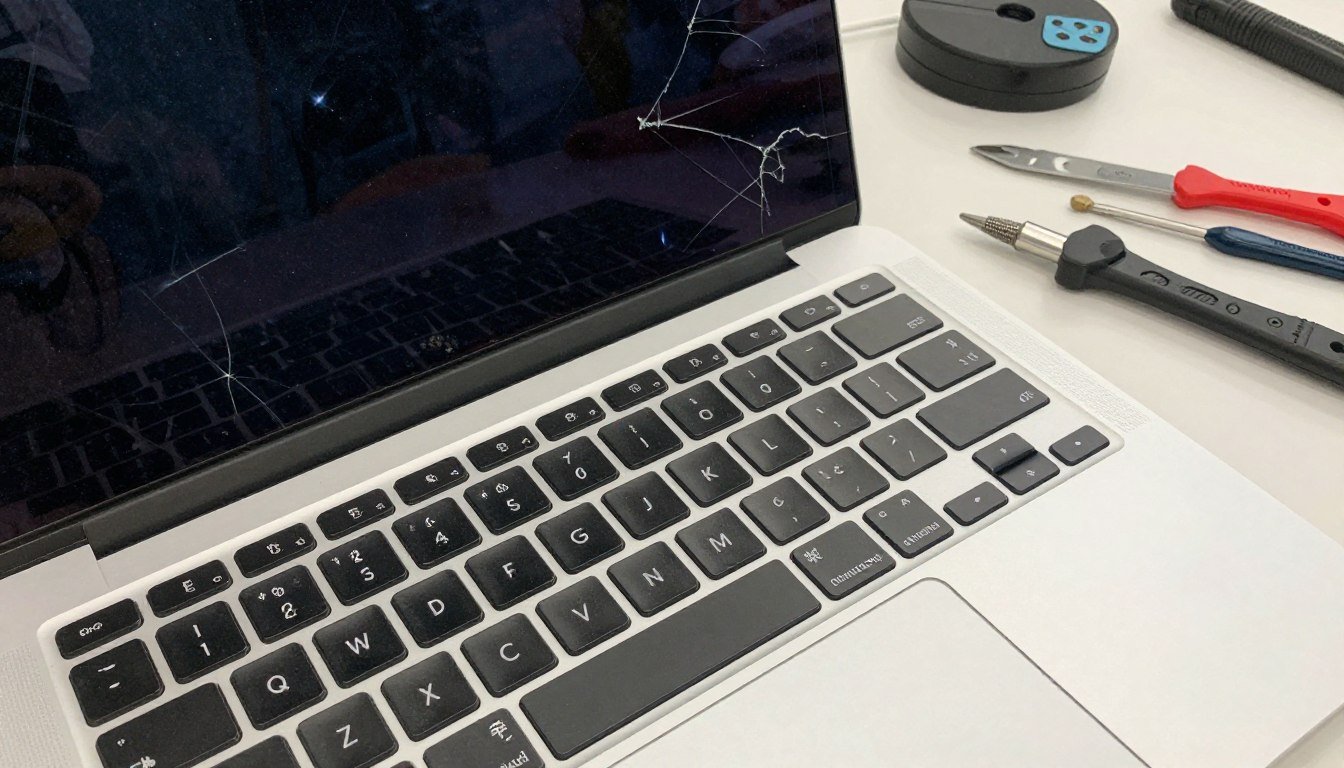
Comparing Diy Vs Professional Repair
Should you fix your Macbook keyboard yourself or seek professional help? Here’s a comparison:
| Repair Method | Pros | Cons | Cost |
|---|---|---|---|
| DIY Cleaning | Cheap, quick, safe for minor debris | Limited to surface cleaning, risk of damage if not careful | £0–£10 (compressed air, cloth) |
| DIY Replacement | Saves money | Complex, voids warranty, requires tools | £50–£250 (parts + tools) |
| Professional Repair | Expert diagnosis, warranty protection | More expensive, time-consuming | £100–£250 (out of warranty) |
| Apple Service Program | Free repairs for eligible models | Limited to butterfly keyboard models | £0 |
Credit: ifixindia.in
Fixing Keyboard Backlight Issues
Some users report keyboard backlight not working. This can be caused by settings, hardware, or macOS bugs.
How To Fix Backlight Problems
- Check System Settings:
- Go to System Settings > Keyboard.
- Adjust backlight slider.
- Enable “Adjust keyboard brightness in low light”.
- Restart your Macbook.
- Reset SMC (as described earlier).
- Check ambient light sensor. Cover the sensor (near camera) to test backlight function.
If the backlight still fails, hardware may be damaged.
Macbook Keyboard Shortcuts Not Working
Sometimes, shortcuts like Command + C or Command + V don’t work.
Steps To Fix Shortcut Problems
- Check System Settings > Keyboard > Shortcuts.
- Restore default shortcuts if you changed them.
- Update macOS.
- Test in Safe Mode.
If only specific shortcuts fail, a third-party app may be interfering.
Improving Typing Experience On Macbook
Even after fixes, you can improve your typing experience:
- Adjust key repeat rate in System Settings.
- Use text expansion apps to speed up typing.
- Customise keyboard shortcuts.
- Try ergonomic accessories (wrist rests, keyboard covers).
Non-obvious tip: For long typing sessions, use an external keyboard to reduce wear on your Macbook.
Real User Experiences
Macbook keyboard issues are widely reported. Here are some real examples:
- Macbook Pro 2017 user: After two years, several keys stopped working. Cleaning with compressed air improved some keys, but a professional repair was needed for others.
- Macbook Air 2020 user: Experienced random typing errors after a major macOS update. Resetting SMC solved the issue.
- Macbook Pro 2018 user: Repeating characters occurred after a spill. Cleaning helped, but full repair was required.
These stories show that while minor problems can be fixed at home, severe issues often need expert help.
Macbook Keyboard Problems: Frequently Asked Questions
What Causes Macbook Keyboard Keys To Stop Working?
Most keys stop working due to dust, debris, liquid spills, or hardware faults. Software bugs and macOS updates can also cause keys to fail. Older butterfly keyboards are more prone to issues.
How Can I Fix Sticky Keys On My Macbook?
To fix sticky keys, turn off your Macbook and clean the keyboard with compressed air and a lint-free cloth. Hold the Macbook at an angle and spray short bursts. If keys remain sticky, professional cleaning may be needed.
Is My Macbook Eligible For Apple’s Free Keyboard Repair?
If you have a Macbook with a butterfly keyboard (2015–2019), you may qualify for Apple’s Keyboard Service Program. Check your model and eligibility at Apple’s official site.
Can Software Updates Fix Keyboard Problems?
Yes, macOS updates can fix bugs and improve keyboard performance. Always keep your Macbook updated, as new releases often solve common keyboard issues.
What Should I Do If My Macbook Keyboard Still Doesn’t Work After Cleaning?
If cleaning and software fixes fail, try resetting SMC and NVRAM/PRAM. If keys remain unresponsive, seek professional repair. Persistent issues often mean hardware failure.
Final Thoughts
Macbook keyboard problems can disrupt your workflow, but most issues—sticky keys, unresponsive buttons, typing lag—can be solved with simple steps. Start by diagnosing the problem, cleaning gently, and updating your software. For butterfly keyboard models, take advantage of Apple’s free repair programme if eligible.
When in doubt, professional help is the safest option. Maintain your Macbook by keeping it clean, avoiding spills, and updating macOS regularly. With the right approach, your Macbook keyboard will remain reliable and comfortable for years to come.
Suggested low-competition keywords:
- Macbook keyboard not working after update
- Macbook Pro sticky keys fix
- Macbook Air keyboard repair cost
- Macbook keyboard shortcuts not working
- Macbook keyboard backlight problem
Internal linking ideas:
- Guide to macOS troubleshooting steps
- Tips for improving Macbook battery life
- Cleaning your Macbook safely
If you need more details about Apple’s official repair programme, visit their Keyboard Service Program.

 MacBook Gear
