


Using a MacBook for multitasking can transform how you work, study, or manage daily tasks. If you often find yourself switching between apps, organizing files, or attending video calls while taking notes, learning to multitask efficiently is a game changer.
While MacBooks are known for their sleek design and speed, many users only scratch the surface of what’s possible. With the right techniques, you can do more in less time, reduce stress, and keep your digital workspace organized.
This guide will show you how to use a MacBook for multitasking efficiently, from mastering built-in features to advanced tips. Whether you’re a student, professional, or casual user, you’ll discover practical steps, hidden shortcuts, and ways to tailor your MacBook to fit your workflow.
By the end, you’ll not only save time but also enjoy using your device more than ever.
Understanding The Basics Of Macbook Multitasking
Before diving into advanced methods, it’s important to know how your MacBook handles multitasking by default. Unlike Windows or Linux, macOS offers unique tools designed to make switching and organizing tasks simple.
The Power Of Macos Architecture
The macOS operating system is built for smooth transitions between tasks. With support for up to 32GB RAM on newer MacBooks and fast SSDs, you can run multiple apps without noticeable slowdowns. Apple’s custom chips, like the M1 and M2, further improve performance, letting you keep dozens of browser tabs, design software, and video calls open at once.
Key Terms To Know
- Mission Control: An overview of all open windows and desktops.
- Spaces: Virtual desktops for organizing different workflows.
- Dock: The bar at the bottom of the screen for quick app access.
- Spotlight: Fast search for apps, files, and web results.
Getting comfortable with these basics is the first step to effective multitasking.
Using Mission Control And Spaces
Mission Control is one of the most powerful multitasking tools on a MacBook. It lets you see everything that’s open and organize your work into separate desktops, called Spaces.
Opening Mission Control
You can open Mission Control in several ways:
- Swipe up with three or four fingers on your trackpad.
- Press the F3 key (with the icon of three rectangles).
- Double-tap the surface of your Magic Mouse with two fingers.
Once open, you’ll see all your windows, apps, and desktops at a glance.
Creating And Using Spaces
Spaces help you organize different projects or contexts. For example, you might have one Space for work, another for personal browsing, and a third for music and messaging.
To add a Space:
- Open Mission Control.
- Move your cursor to the top-right corner and click the “+” sign.
- Drag windows into your new Space.
You can switch between Spaces by:
- Swiping left or right with three fingers on the trackpad.
- Using the Control + Right/Left Arrow keys.
This setup keeps your workflow tidy and prevents distractions from other open apps.
Example Use Case
Imagine you’re writing a report in Pages, referencing research in Safari, and chatting on Slack. Put Pages and Safari in one Space, Slack in another, and switch between them as needed. This separation helps you focus without closing anything.
Mastering Split View And Window Management
One of the most common struggles with multitasking is managing many open windows. Split View makes this easier by letting you use two apps side by side, each taking half the screen.
How To Use Split View
- Click and hold the green full-screen button in the top-left corner of an app window.
- Drag the window to the left or right side of the screen.
- Select another open app for the other side.
Now you can, for example, take notes in Notes while watching a lecture in Safari.
Exiting Split View
Move your mouse to the top of the screen until the menu bar appears. Click the green button again, and the window returns to its normal size.
Using Third-party Window Managers
If you need more flexibility, apps like Magnet or Rectangle offer advanced window snapping and layouts. These apps let you arrange windows in quarters, thirds, or custom sizes with simple keyboard shortcuts. This is especially useful for larger screens or complex workflows.
Table: Split View Vs. Third-party Apps
| Feature | Split View (macOS) | Magnet/Rectangle |
|---|---|---|
| Built-in | Yes | No |
| Side-by-Side Only | Yes | No (supports more layouts) |
| Custom Shortcuts | No | Yes |
| Multiple Windows | 2 | Unlimited |
Taking Advantage Of The Dock And App Switching
The Dock keeps your most-used apps a click away. You can customize it for your workflow and use keyboard shortcuts to switch apps instantly.
Customizing The Dock
- Drag apps into or out of the Dock.
- Right-click an app for options like “Open at Login.”
- Resize the Dock or move it to the left/right of the screen in System Settings.
A well-organized Dock saves time and reduces clutter.
Fast App Switching
Press Command + Tab to cycle through open apps. Hold Command and keep tapping Tab until you reach the app you want, then release. For background apps you use often (like Spotify or Slack), this shortcut is much faster than clicking.
Quick App Previews
With Command + ` (backtick), you can switch between windows of the same app (for example, two Word documents). This is a detail many users miss, but it’s a huge time saver when working with multiple files.
Using Spotlight And Siri For Quick Actions
Spotlight search is more than just a launcher. It’s a powerful tool for multitasking if you know what it can do.
Spotlight Tricks
- Press Command + Space to open Spotlight.
- Type an app name to open it instantly.
- Search for files, emails, or even web results.
- Type quick calculations or unit conversions (e.g., “56 USD in EUR”).
- Launch system settings directly (e.g., “Bluetooth”).
Spotlight reduces the need for mouse clicks and window hunting.
Siri For Hands-free Help
Click the Siri icon in the menu bar or hold Command + Space (if enabled). Ask Siri to “open Calendar,” “send a message,” or “show today’s meetings. ” For multitasking, Siri can set reminders, check the weather, or find files while you keep working in another app.
Setting Up Hot Corners And Gestures
Many MacBook users never customize Hot Corners or trackpad gestures, but these can speed up multitasking dramatically.
Configuring Hot Corners
Hot Corners let you trigger actions by moving your mouse to a screen corner. To set up:
- Open System Settings > Desktop & Dock > Hot Corners.
- Choose actions for each corner (e.g., Mission Control, Quick Note, Lock Screen).
For example, set the top-left corner for Mission Control and the bottom-right for Desktop. Moving your mouse quickly triggers these without extra clicks.
Useful Trackpad Gestures
- Three-finger swipe up: Mission Control
- Three-finger swipe left/right: Switch Spaces
- Pinch with thumb and three fingers: Show Desktop
Mastering these gestures reduces reliance on keyboard shortcuts and speeds up navigation.
Organizing Workspaces With Focus Modes And Notifications
Staying focused is as important as switching tasks. macOS Monterey and newer include Focus Modes that limit distractions and organize notifications.
Using Focus Modes
Set up Focus Modes for work, study, or personal time:
- Open System Settings > Focus.
- Add a new Focus (like “Writing” or “Meetings”).
- Choose which apps and people can notify you.
When you switch Focus Modes, your notifications and app access adjust automatically. This is perfect for multitasking without being interrupted.
Managing Notifications
Tidy up your notifications:
- Go to System Settings > Notifications.
- Turn off non-essential alerts.
- Set app-specific notification styles.
A clean notification center keeps you aware of important updates without breaking your flow.
Leveraging Multiple Displays And Airplay
For the ultimate multitasking setup, use a second display or AirPlay to extend your workspace.
Connecting An External Monitor
Plug in a monitor with USB-C, HDMI, or Thunderbolt. macOS detects it automatically. You can:
- Drag windows between screens.
- Use one for email, another for editing, and a third for research.
Using Airplay
With AirPlay, you can mirror or extend your MacBook’s display to an Apple TV or compatible device. This is useful for presentations, video calls, or when working from the couch.
Table: Built-in Display Vs. Multiple Displays
| Feature | Single Display | Multiple Displays |
|---|---|---|
| Screen Space | Limited | Expanded |
| Window Management | Stacked/Overlapping | Organized by Task |
| Productivity | Good | Excellent |
| Setup Cost | None | Extra hardware needed |
Non-obvious Tip
If you don’t have a second monitor, you can use an iPad as an extra display with Sidecar. Connect your iPad via USB or Wi-Fi, then choose “Use As Separate Display” from the Display menu in macOS. This is perfect for sketching, note-taking, or keeping reference material nearby.
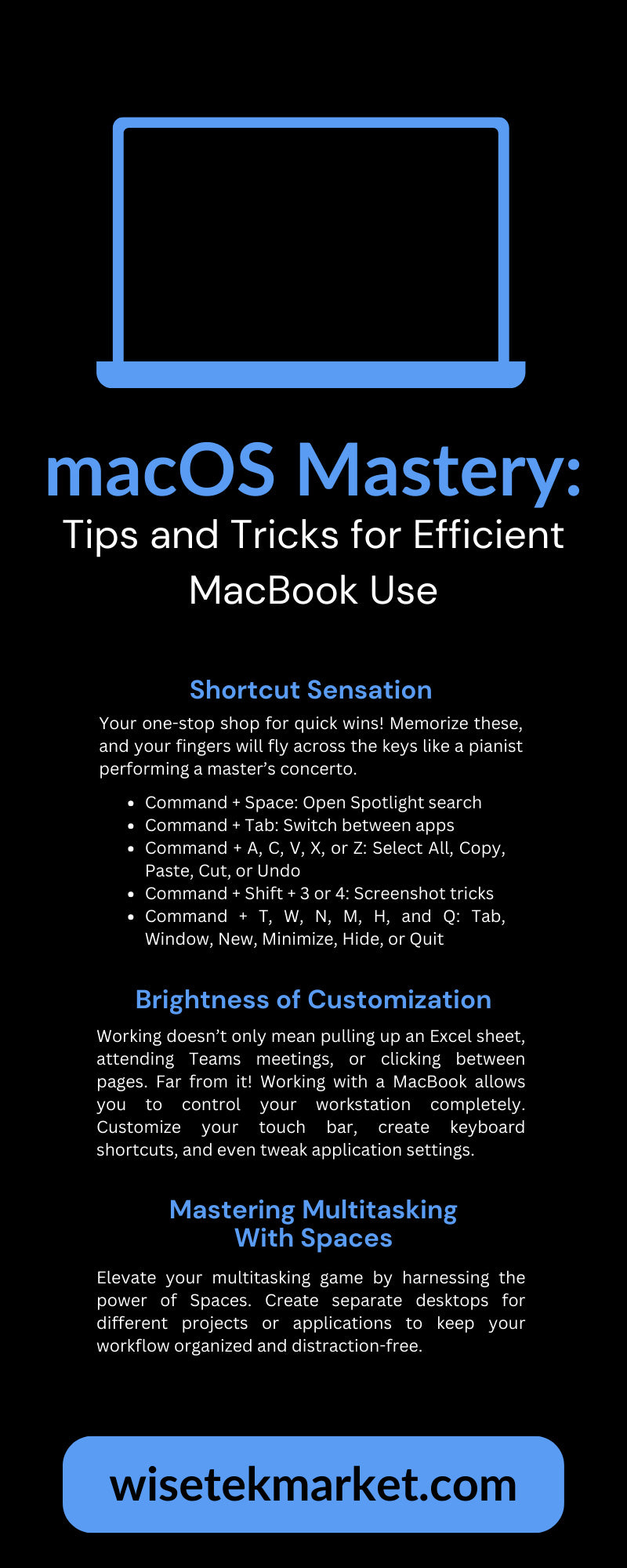
Credit: www.wisetekmarket.com
Managing Files And Windows Efficiently
A cluttered desktop and messy file structure slow you down. Efficient multitasking means you should find files and windows instantly.
Organizing Files With Finder
- Use Tags: Color-code files by project or priority.
- Create Smart Folders: Save searches for files you use often.
- Use Stacks on your desktop: Right-click and select “Use Stacks” to auto-sort by file type.
Quick Look And Preview
Select a file and press the Spacebar to preview it instantly, without opening the app. This is great for checking PDFs, images, or documents while working in another window.
Managing Many Windows
- Minimize windows to the Dock if not needed.
- Use Mission Control to drag windows between Spaces.
- Close unused windows regularly to avoid confusion.
Example: Research Workflow
If you’re gathering data for a report, keep your research PDFs tagged in Finder, your draft open in Pages, and your references in another Space. Use Quick Look to scan sources without opening new apps.
Using Universal Clipboard And Handoff
Apple’s Continuity features help you move information between devices without friction.
Universal Clipboard
Copy text, images, or files on your iPhone or iPad, then paste them on your MacBook (or vice versa). Just use Command + C and Command + V as usual. This is seamless if all devices use the same Apple ID and Bluetooth/Wi-Fi are enabled.
Handoff
Start an email on your iPhone and finish it on your MacBook, or open a webpage on your iPad and continue reading on your Mac. Look for the app icon in your Dock or the app switcher.
These features are underused but perfect for multitasking across devices.

Credit: www.geeky-gadgets.com
Automating Repetitive Tasks With Shortcuts
The Shortcuts app (introduced in macOS Monterey) lets you automate tasks. This is a powerful way to multitask without manual effort.
Creating A Simple Shortcut
For example, create a shortcut that:
- Opens Mail, Calendar, and Slack at once.
- Renames files in bulk.
- Converts images to PDFs.
To set up:
- Open the Shortcuts app.
- Click the “+” to create a new shortcut.
- Add actions from the library.
You can trigger shortcuts from the menu bar, with a keyboard shortcut, or even with Siri.
Example Automation
Suppose you often export images for work. Build a shortcut that resizes, renames, and moves them to the right folder—all with one click.
Table: Manual Vs. Automated Workflows
| Task | Manual Steps | With Shortcuts |
|---|---|---|
| Open 3 Apps | Open each app | One Shortcut click |
| Rename 10 Files | Click each file, rename | Batch action in Shortcut |
| Convert Images | Open, export, save | One action in Shortcut |
Optimizing Safari And Other Browsers For Multitasking
Many tasks revolve around web browsing. Safari, Chrome, and Firefox all offer tools for managing many tabs and windows.
Safari Tab Groups
Safari’s Tab Groups let you organize tabs by project or topic. For example, keep all your research tabs in one group and your social media in another. Switch between groups as you change tasks.
To create:
- Click the sidebar button in Safari.
- Choose “New Tab Group.”
- Drag tabs into the group.
Pinning Tabs
Pin your most-used sites (like Gmail, Trello, or Google Docs) to the left side of your tab bar. Right-click a tab and choose “Pin Tab. ” These stay open and reload automatically.
Extensions For Multitasking
Safari and Chrome support extensions for managing tabs, blocking distractions, and saving articles to read later. Some popular choices are:
- OneTab: Collapse all tabs into a list.
- Pocket: Save articles to read later.
- StayFocusd: Block distracting sites.
Managing Multiple Windows
Open new Safari windows for different tasks (Command + N). Use Mission Control to arrange these across Spaces or displays.
Handling Communication Apps And Video Calls
With remote work and online learning, communication apps are always running. Managing them well is crucial for multitasking.
Keeping Messaging Apps In Check
- Use web versions of Slack, WhatsApp, or Teams in separate Safari windows.
- Turn off unnecessary notifications during focus time.
- Pin messaging apps to the Dock for fast access.
Video Calls In Split View
Join a Zoom or Teams call in one half of your screen, and take notes or view reference material in the other. Use headphones to avoid audio feedback and keep your workspace quiet.
Background Noise Reduction
macOS supports background noise reduction in video calls. In Control Center, select Mic Mode and choose “Voice Isolation” to filter out ambient noise. This keeps calls clear while you multitask.
Managing Energy And Performance
Running many apps can drain your MacBook’s battery and slow things down. Here’s how to keep performance high:
Check Activity Monitor
Open Activity Monitor (from Spotlight) to see which apps use the most CPU, memory, or energy. Quit apps that use too much if you don’t need them.
Reduce Background Processes
- Close unused browser tabs.
- Turn off auto-start for apps you rarely use (right-click in Dock > Options).
- Disable widgets or menu bar items you don’t need.
Use Low Power Mode
On newer MacBooks, enable Low Power Mode in System Settings > Battery for longer battery life during intense multitasking.
Monitor Storage Space
A full SSD can slow your MacBook. Regularly delete old files or move them to external storage or iCloud.

Credit: www.ebay.com
Customizing Your Workflow With Third-party Apps
While macOS offers strong multitasking features, third-party apps can take efficiency further.
Popular Productivity Apps
- Alfred: Replaces Spotlight with advanced search and automation.
- BetterSnapTool: Custom window resizing and snapping.
- Notion: All-in-one notes, tasks, and databases.
- Fantastical: Advanced calendar management.
Managing Clipboard History
Tools like Paste or CopyClip let you keep a history of everything you copy. Retrieve old clipboard items with a click—great for heavy multitaskers.
Time Tracking And Focus
Apps like RescueTime or Focus@Will help you analyze where your time goes and set focus sessions.
Non-obvious Insight
Many users overlook keyboard remapping tools like Karabiner-Elements. With these, you can assign custom shortcuts to common actions (like opening Mission Control or switching Spaces) to fit your workflow.
Keeping Your Macbook Secure While Multitasking
Multitasking often means handling sensitive information. Keeping your MacBook secure is essential.
Use Strong Passwords And Touch Id
Set a strong password and enable Touch ID (if available) for quick but secure unlocking.
Lock Your Screen Quickly
Set a Hot Corner or use Control + Command + Q to lock your screen instantly when stepping away.
Keep Software Updated
Install macOS updates promptly to patch security holes and get new multitasking features.
Use Filevault Encryption
Enable FileVault in System Settings > Security & Privacy to encrypt your hard drive.
Be Cautious With Downloads
Only install apps from the Mac App Store or trusted sources. This protects your data and keeps your MacBook running smoothly.
Troubleshooting Common Multitasking Issues
Even with the best setup, things can go wrong. Here’s how to solve common problems:
Slow Performance
- Restart your MacBook to clear memory.
- Close unused apps and tabs.
- Check for macOS updates.
Apps Freezing Or Crashing
Force quit with Option + Command + Esc, then reopen the app. If the issue persists, reinstall the app or check for compatibility.
Window Clutter
Use Mission Control to arrange or close windows. Set up Spaces for different tasks to keep things organized.
Bluetooth Or Wi-fi Glitches
Turn wireless connections off and on. If problems persist, restart your MacBook or reset your PRAM/NVRAM.
Lost Files
Use Spotlight or the Finder search bar. Check iCloud Drive if you use cloud backup.
Frequently Asked Questions
How Can I Quickly Switch Between Apps Without Using The Mouse?
Press Command + Tab to cycle through your open apps. To switch between windows of the same app, use Command + ` (backtick). These shortcuts are much faster than using the Dock or clicking windows.
Can I Use My Ipad As A Second Screen With My Macbook?
Yes. With Sidecar, you can connect your iPad as an extra display via USB or Wi-Fi. Open the Display menu in macOS and select your iPad. It’s great for keeping reference material or tool palettes nearby.
What Is The Best Way To Organize Browser Tabs For Multitasking?
Use Tab Groups in Safari or extensions like OneTab in Chrome. Group related tabs by project or task, and pin your most-used sites for easy access. Close tabs you don’t need to save memory.
How Do I Automate Tasks On My Macbook?
Use the Shortcuts app (built into macOS Monterey and later) to automate actions like opening multiple apps, renaming files, or converting images. You can trigger shortcuts from the menu bar, with a hotkey, or using Siri.
Are There Risks With Third-party Multitasking Apps?
Most apps from the Mac App Store are safe. When downloading elsewhere, choose trusted sources and check reviews. Avoid apps that request unnecessary permissions or access to sensitive data. For more, visit Apple’s official support page.
Using a MacBook for multitasking efficiently is about more than just opening lots of apps—it’s about organizing, automating, and customizing your workflow. With the tools and tips in this guide, you’ll find yourself working faster, staying focused, and enjoying your MacBook’s full power every day.
Whether you’re new to macOS or a seasoned user, these strategies will help you get more done, reduce stress, and make your MacBook feel truly yours.

 MacBook Gear
