


Many MacBook users search for ways to make their battery last longer, especially when traveling or working away from a power outlet. Apple’s Low Power Mode promises to extend battery life by reducing energy use, but does it really help? Is it worth turning on, and what changes when you use it? This article explores how Low Power Mode works, its benefits, its limits, and what real-world data shows. By the end, you’ll know if Low Power Mode is right for you and how to get the most out of your MacBook’s battery.
What Is Low Power Mode On Macbook?
Low Power Mode is a feature built into macOS that helps your MacBook use less energy. When enabled, your MacBook automatically changes several settings to lower power consumption. This mode was first introduced in macOS Monterey (2021) and works on most recent MacBook models, including MacBook Air and MacBook Pro.
In simple terms, Low Power Mode slows down some parts of your MacBook and turns off certain features to save energy. Think of it as putting your computer on a diet—it runs a bit slower, but lasts longer. For many users, this small trade-off means being able to finish important work or make it through the day without searching for a charger.
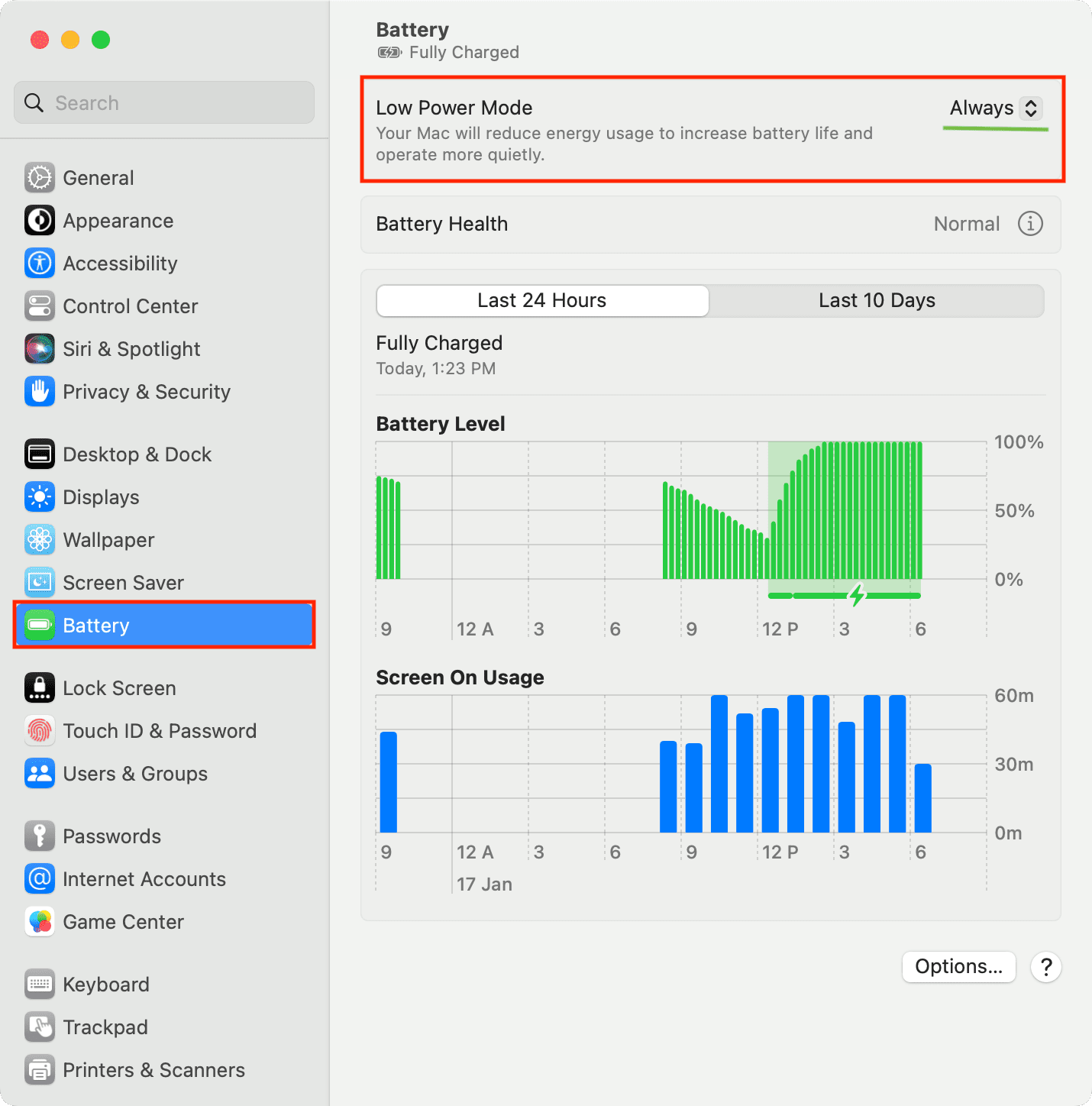
How To Enable Low Power Mode
Turning on Low Power Mode is easy:
- Click the Apple menu in the top left corner.
- Select System Settings (or System Preferences).
- Go to Battery.
- Find Low Power Mode and toggle it on.
You can also enable it when your MacBook is plugged in, but most people use it to save battery.
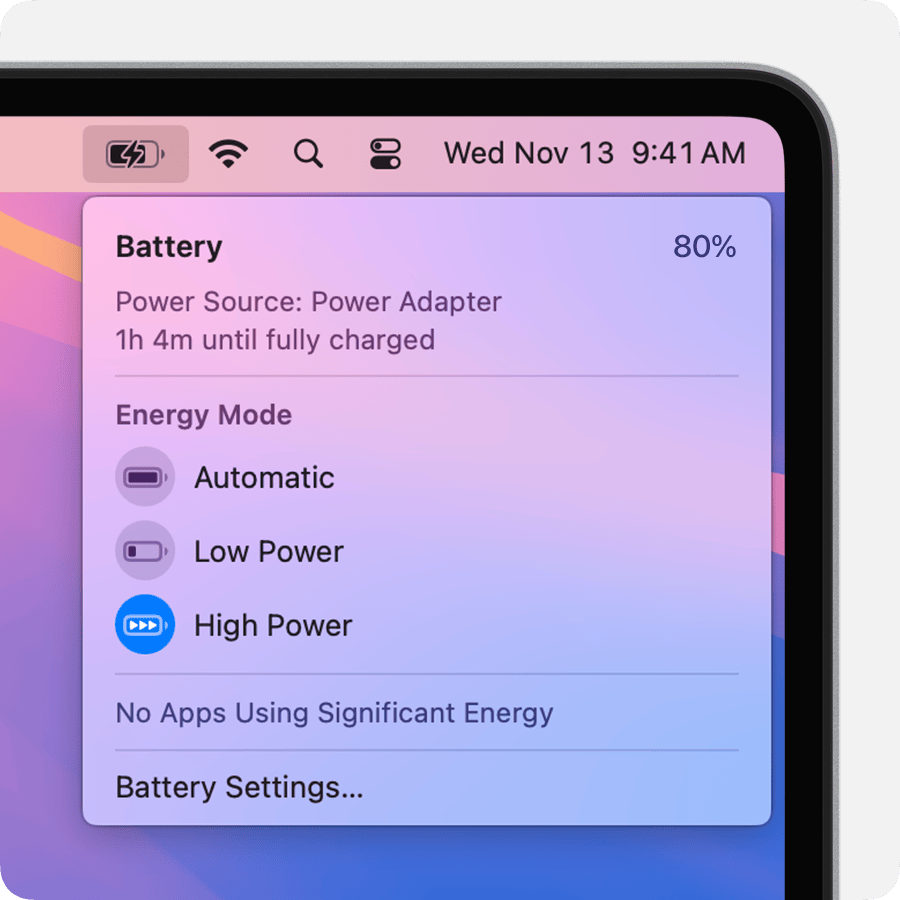
A useful tip: If you want to make switching even faster, you can add the battery status icon to your menu bar (System Settings > Control Center > Battery) so you can access battery options quickly.
What Changes When Low Power Mode Is On?
When you activate Low Power Mode, macOS tweaks several things:
- Processor speed is reduced, so your MacBook works slower.
- Screen brightness is lowered automatically.
- Background tasks (like syncing or updating apps) may pause or run less often.
- Visual effects are minimized (less animation).
- Wireless connections (Wi-Fi, Bluetooth) may use less power.
These changes help your MacBook last longer on a single charge, but they can affect performance.
You might also notice that your MacBook feels cooler to the touch when using Low Power Mode, because less energy use generates less heat. This is helpful if you’re using your MacBook on your lap or in a warm room.
How Much Does Low Power Mode Extend Battery Life?
Apple claims that Low Power Mode can significantly increase battery life, but how much depends on your usage. Let’s look at real-world data and comparisons.
Battery Life Tests
Several tech websites and YouTube reviewers have tested Low Power Mode on MacBook models. Here are some typical results:
| MacBook Model | Normal Mode | Low Power Mode | Difference |
|---|---|---|---|
| MacBook Air (M1) | 15 hours | 17 hours | +2 hours |
| MacBook Pro (M1) | 17 hours | 19 hours | +2 hours |
| MacBook Air (M2) | 16 hours | 18 hours | +2 hours |
Most users see an extra 1.5 to 2.5 hours of battery life, depending on tasks and screen brightness.
These battery tests are done with normal tasks like web browsing, streaming video, and using Office apps. If you use only lightweight apps, you might even see a bigger boost—sometimes up to 3 extra hours. On the other hand, if you’re running heavy apps, the gain may be just 30–60 minutes.
What Impacts Battery Savings?
Low Power Mode is most effective when:
- You’re browsing the web or using simple apps.
- Your screen brightness is low.
- You avoid heavy tasks (video editing, gaming).
If you use demanding software, the battery savings may be less noticeable.
A less obvious factor is your MacBook’s age. Newer M1 and M2 models are already very energy efficient, so the boost is clear. On older Intel-based MacBooks, the difference can vary—sometimes less, sometimes more—because the hardware is less optimized.
Another tip: The more background apps you close, the more effective Low Power Mode becomes. If you have 10+ apps running, some battery is wasted no matter what.
Credit: support.apple.com
Performance Trade-offs: What Do You Lose?
Saving battery comes with a price. Low Power Mode changes how your MacBook works, sometimes in ways you can feel.
Slower Processing
Your MacBook’s CPU (processor) slows down to use less power. This means tasks like opening apps, editing photos, or working with large files take longer.
For example, if you normally export a video in 10 minutes, it might take 12–13 minutes in Low Power Mode. The difference is small for basic tasks but bigger for demanding work.
It’s important to note: for web browsing, writing documents, or watching videos, most users won’t notice much slowdown. But if you’re using apps like Adobe Photoshop, Xcode, or Final Cut Pro, expect a clear drop in speed.
Reduced Visual Effects
Animations and graphics are less smooth. Windows may open slower, and scrolling can feel less responsive. For most users, this is not a big problem, but creative professionals might notice it.
Some users report that Mission Control and Launchpad animations are “choppier. ” If you care about a silky-smooth visual experience, you may prefer to leave Low Power Mode off.
Background Tasks Pause
Features like iCloud syncing or automatic updates may pause or slow down. If you rely on your MacBook to keep files updated in real time, Low Power Mode can delay this.
A less obvious example: If you use cloud backup tools or sync your photo library, those uploads might pause or run slower, so your data could be out of sync until you turn Low Power Mode off.
Lower Screen Brightness
Low Power Mode lowers the screen brightness automatically. If you’re in a bright room, this might make it harder to see details.
If you want more control, you can manually raise brightness, but that reduces battery savings. It’s a good idea to adjust the brightness only as much as needed.
Comparing Low Power Mode To Other Battery-saving Methods
Low Power Mode is not the only way to extend battery life. Let’s compare it to other common methods.
| Method | Battery Impact | Performance Impact | Ease of Use |
|---|---|---|---|
| Low Power Mode | +10–15% | Moderate | Very Easy |
| Manual Brightness Control | +5–10% | None | Easy |
| Close Unused Apps | +5% | None | Easy |
| Disable Wi-Fi/Bluetooth | +2–5% | None | Easy |
| Turn Off Visual Effects | +3–7% | Low | Moderate |
Low Power Mode combines several battery-saving actions into one switch. It’s easier for most users than managing settings individually.
A practical example: Some users set up “custom” battery-saving modes by lowering brightness, closing apps, and turning off Wi-Fi. Low Power Mode does most of this automatically, saving time and reducing mistakes.
Who Should Use Low Power Mode?
Low Power Mode is not for everyone. It works best in certain situations.
Ideal Scenarios
- Traveling: If you’re on a plane or bus with no charger, Low Power Mode can help you finish your work.
- Long Meetings: When you need your MacBook to last all day without charging.
- Outdoor Work: If you use your MacBook away from power outlets, like in a park or café.
- Emergency: If your battery is low and you need extra time.
For students, remote workers, or professionals who sometimes forget their charger, Low Power Mode is a great backup plan. It is also useful during power outages or when outlets are in high demand, such as at conferences.
Not Ideal For
- Professional Creators: If you edit videos, design graphics, or use powerful apps, Low Power Mode can slow you down.
- Gamers: Games may run slower and look less smooth.
- Heavy Multitaskers: If you need many apps open at once, performance might drop.
If you use your MacBook for presentations or real-time tasks (like live music or coding demos), test Low Power Mode first, as some features may lag.
How Low Power Mode Works: Technical Details Explained Simply
Low Power Mode changes several technical settings under the hood. Here’s what happens, explained in simple terms:
Processor Throttling
The CPU and GPU (graphics processor) run at lower speeds. This reduces energy use but slows down calculations.
On M1 and M2 chips, Apple uses “efficiency cores” more, which are designed to use less power. On Intel-based Macs, the processor clock speed is reduced, which also lowers heat.
Screen And Display Changes
- Brightness is lowered automatically.
- Refresh rate may drop, especially on Pro models with high refresh screens.
On MacBook Pro models with ProMotion displays (120Hz), the refresh rate may drop to 60Hz or lower, which saves extra power.
Background Activity Limits
- Updates and syncing happen less often.
- Apps running in the background may pause or slow down.
For example, automatic photo analysis or Spotlight indexing is delayed. This can reduce sudden battery drain from surprise background processes.
Wireless Power Saving
- Wi-Fi and Bluetooth use less energy, sometimes by reducing signal strength or connection checks.
In some cases, AirDrop and Handoff features may be slower or less reliable in Low Power Mode because the wireless radio checks less often.
These changes are managed by macOS, so you don’t need to adjust each one manually.
Common Myths About Low Power Mode
Some people misunderstand Low Power Mode. Let’s clear up a few myths.
Myth 1: Low Power Mode Will Damage Your Macbook
False. Low Power Mode does not hurt your MacBook. It simply uses less power and slows down performance temporarily. Once you turn it off, everything returns to normal.
Myth 2: Low Power Mode Makes All Apps Slow
Not always. Simple apps like browsers or word processors work almost the same. Only heavy apps (video editors, games) slow down noticeably.
Myth 3: Low Power Mode Is Only For Old Macbooks
No. Low Power Mode works on new and old MacBooks. In fact, newer models (M1, M2 chips) benefit the most because their chips are more efficient.
Myth 4: Low Power Mode Affects Battery Health
Low Power Mode does not harm battery health. In fact, using less power can help your battery last longer over years by reducing heat and wear.
Another myth is that you must restart your MacBook after enabling Low Power Mode for it to take effect. This is not true—changes apply instantly.
Real-world Examples: When Low Power Mode Saved The Day
Let’s look at a few situations where Low Power Mode made a difference.
College Student In A Lecture
Maria was halfway through a four-hour lecture when she noticed her battery was at 30%. She switched on Low Power Mode, lowered her screen brightness, and managed to take notes for the rest of the class without running out of battery.
Traveler On A Long Flight
James was flying from New York to London and forgot his charger. He enabled Low Power Mode before boarding. He watched movies and wrote emails for nearly eight hours, arriving with enough battery to call a ride from the airport.
Remote Worker At A Café
Priya spent the day working in a café with no nearby outlets. By starting in Low Power Mode, she finished her client calls and sent her files before the battery dropped below 10%.
Other users have shared similar stories in online forums, like finishing exams, attending full-day workshops, or even getting through a day at a music festival with their MacBook as a DJ tool, all thanks to Low Power Mode.
These stories show how Low Power Mode can be a lifesaver when you can’t recharge.

Credit: mashable.com
Non-obvious Insights About Low Power Mode
Many articles miss these important points:
- Low Power Mode can be used even when plugged in. If you want to keep your MacBook cool or reduce fan noise, you can turn it on while charging.
- Not all battery-saving actions are automatic. Low Power Mode does not close unused apps or turn off Wi-Fi. You should still manage these yourself for maximum savings.
- Low Power Mode can reduce heat and extend hardware life. By lowering energy use, it keeps your MacBook cooler, which can help internal parts last longer.
- Low Power Mode can help when your MacBook is overheating. If your device feels hot or the fans are loud, enabling Low Power Mode can help bring temperatures down quickly, especially in hot climates.
How To Combine Low Power Mode With Other Strategies
To get the most battery life, you can combine Low Power Mode with other simple actions:
- Manually lower screen brightness.
- Close unused apps and browser tabs.
- Turn off Bluetooth if not needed.
- Limit notifications and background syncing.
For example, if you use Low Power Mode and set your screen to the lowest comfortable brightness, you can often get another 30–60 minutes of battery.
Another advanced tip: Turn off “Hey Siri” and disable location services if you don’t need them. These features can wake up your MacBook’s processor and drain extra power, even in Low Power Mode.
Comparing Macbook Low Power Mode To Iphone/ipad
Apple has had Low Power Mode on iPhones and iPads for years. But is it the same on MacBooks?
| Device | Low Power Mode Actions | Performance Impact | Battery Extension |
|---|---|---|---|
| MacBook | CPU/GPU throttling, brightness reduction, background limits | Moderate | +10–15% |
| iPhone | Background fetch off, mail fetch off, auto-lock faster, brightness lower | Low | +20% |
| iPad | Similar to iPhone | Low | +20% |
On MacBook, Low Power Mode affects performance more than on iPhone or iPad, but the battery boost is similar.
One difference: On iPhone, Low Power Mode turns off some visual effects and automatic downloads, while on MacBook, the main focus is on processor speed and display settings.
How To Tell If Low Power Mode Is On
Some users wonder how to check if Low Power Mode is active.
- Look for the battery icon in the menu bar. When Low Power Mode is on, it may look slightly different (more faded).
- In System Settings > Battery, you’ll see the toggle switch.
- Some third-party apps (like iStat Menus) show extra info about power state.
You can also use the “About This Mac” menu and check the System Report under Power, where it lists Low Power Mode status.
Steps For Troubleshooting Low Power Mode Issues
If you notice problems with Low Power Mode, try these steps:
- Restart your MacBook. Sometimes, settings don’t apply correctly until you restart.
- Update macOS. Make sure your system is up to date. Apple fixes bugs often.
- Check battery health. In System Settings > Battery, look for “Battery Condition.”
- Reset SMC (System Management Controller) if you have an Intel MacBook. Apple silicon Macs don’t need this.
If Low Power Mode causes major performance drops, turn it off and see if the issue goes away.
Another tip: If your battery drains quickly even in Low Power Mode, check for “rogue” apps in Activity Monitor using lots of energy (like Chrome or Dropbox). Quitting them can solve the problem.
What Experts And Reviewers Say
Tech experts generally agree that Low Power Mode is useful for extending battery life, especially on newer MacBooks. Here’s what some reviewers say:
- MacRumors: “Low Power Mode is a simple way to get extra battery life with minimal effort, though users should expect slower performance.”
- The Verge: “For basic tasks, Low Power Mode provides a meaningful boost in battery time. Power users may want to leave it off for full speed.”
- 9to5Mac: “Low Power Mode is great for travel or emergencies, but not ideal for heavy work.”
Apple’s official support page also explains the feature: Apple Support.
Many user forums also share positive experiences, especially for students and business travelers who depend on their MacBook lasting a full day.
Frequently Asked Questions
Does Low Power Mode Affect Battery Health?
No, Low Power Mode does not harm battery health. By lowering energy use and heat, it can help your battery last longer over time.
Can I Use Low Power Mode While Charging?
Yes, you can enable Low Power Mode even when your MacBook is plugged in. This can help keep your device cooler and reduce fan noise.
Will Low Power Mode Make My Macbook Too Slow?
For simple tasks like web browsing, email, or word processing, the speed difference is small. For heavy tasks (video editing, gaming), you may notice things run slower.
How Much Extra Battery Life Will I Get?
Most users see 1. 5 to 2. 5 extra hours, depending on their MacBook model and how they use it. The savings are bigger if you also lower screen brightness and close unused apps.
Does Low Power Mode Turn Off Wi-fi Or Bluetooth?
No, it does not turn off Wi-Fi or Bluetooth. If you want to save even more battery, you should turn these off yourself when not needed.
Can I Set Low Power Mode To Turn On Automatically?
As of now, macOS does not let you schedule Low Power Mode by default, but some third-party apps and automation tools (like Shortcuts or Keyboard Maestro) can do this. This is useful if you always want Low Power Mode when your battery hits a certain percentage.
Final Thoughts
Low Power Mode on MacBook is a practical tool for extending battery life with just one click. It works best for simple tasks and in situations where you need your MacBook to last longer away from a charger. While it slows down performance, the trade-off is usually worth it for students, travelers, and everyday users.
By combining Low Power Mode with other battery-saving habits, you can maximize your MacBook’s uptime and even help your device stay cooler and healthier. If you often find yourself running low on battery, Low Power Mode is a smart solution to try.
With a better understanding of how and when to use it, you can get more from your MacBook—whether you’re on the road, in a lecture, or finishing work on a tight deadline. Remember, the power is in your hands to make each battery charge go further.
Credit: www.idownloadblog.com

 MacBook Gear
