


Many MacBook users notice their laptops slowing down over time. The cause is often background processes—apps and system tasks running quietly, consuming memory and CPU. These invisible helpers can be useful, but too many can drain battery, hog resources, and make your MacBook feel sluggish. If you’ve ever wondered why your fan kicks in, or why apps seem to take forever to open, background processes may be the culprit.
Learning how to reduce these hidden processes is key to keeping your MacBook fast and efficient. The good news: you don’t need to be a tech expert. With a few smart steps, anyone can control unwanted background activity and reclaim their Mac’s performance.
Let’s explore practical ways to identify, manage, and minimize background tasks. You’ll discover tools built into macOS, expert tricks, and insights most beginners miss. By the end, you’ll know how to keep your MacBook running lean—no matter how old it is.
Understanding Background Processes On Macbook
A background process is any task that runs without direct user interaction. These can be part of macOS, installed apps, or even system services. Examples include software updates, file indexing, cloud syncing, and antivirus scans.
macOS is designed to handle many processes efficiently. But over time, extra apps, utilities, and services can pile up. Each new process competes for CPU, memory (RAM), and battery. When too many run at once, performance drops.
Common Types Of Background Processes
- System Services: MacOS uses services like Spotlight indexing, Time Machine backups, and iCloud syncing.
- App Helpers: Apps like Dropbox, Google Drive, and antivirus tools run helper processes for syncing or protection.
- Startup Items: Many apps add themselves to startup, launching helper tools every time you turn on your Mac.
- Update Checkers: Some apps periodically check for updates in the background.
Some processes are temporary, like software updates. Others, such as syncing tools or antivirus scans, run constantly. Even simple apps can leave behind small helper tools that start automatically. Over time, these add up, often without you noticing.
How They Affect Performance
Each process takes a small slice of resources. But together, they can:
- Slow down app launches
- Cause fan noise and heat
- Drain battery faster
- Make multitasking difficult
- Lead to lag or freezing
If you’re working on a big project, using heavy apps like Photoshop, or running multiple browser tabs, background processes can quickly push your MacBook to its limits. Sometimes, two or more background tasks will overlap—like Time Machine backing up while iCloud syncs—making the slowdown even worse.
Real-world Example
A 2022 study found that Macs with 10+ active background processes used up to 30% more CPU and 25% more battery than those with only essential tasks. Users often don’t realize how much these processes accumulate over time.
For example, a student might install Google Drive, Dropbox, and OneDrive. Each service runs its own helper, checking for updates and syncing files. Add in antivirus and messaging apps, and your MacBook could be running dozens of hidden processes—slowing things down even if you only see a few open windows.
Identifying Background Processes
You can’t manage what you can’t see. The first step is to find out which processes are running.
Activity Monitor: The Built-in Tool
Activity Monitor is macOS’s main tool for viewing running processes. It shows all apps and system tasks, including those in the background.
To open Activity Monitor:
- Go to Applications > Utilities > Activity Monitor
- Click on the CPU tab to see which processes use the most processing power.
- Check the Memory tab for RAM usage.
Look for processes with high CPU or memory. The names often match apps or services you’ve installed.
If you see processes you don’t recognize, search their names online. Many are safe system tasks, but some could be leftover helpers from old apps.
Data Table: Common Background Processes And Their Resource Usage
| Process Name | Type | Average CPU (%) | Average RAM (MB) |
|---|---|---|---|
| Spotlight | System | 2-10 | 60-120 |
| Dropbox | App Helper | 3-8 | 100-200 |
| Google Chrome Helper | App Helper | 5-15 | 150-300 |
| Time Machine | System | 1-12 | 50-110 |
| mds/mdworker | System | 1-10 | 60-130 |
These numbers may seem small, but multiply them by many processes and your resources can quickly be used up.
Hidden Processes
Some processes don’t show up in the Dock or Finder. Activity Monitor helps, but for advanced users, the Terminal can reveal even more. Typing `top` or `ps aux` in Terminal lists all processes, including hidden ones.
For example, running `ps aux | grep Dropbox` in Terminal will show every Dropbox-related process, even ones not visible elsewhere.
Signs Of Excessive Background Activity
- Fan runs often, even when idle
- Battery drains quickly
- Apps freeze or crash
- MacBook feels hot
If you notice these signs, it’s likely too many background processes are running.
Another subtle sign: sometimes you’ll hear the fan ramp up right after logging in, or when copying large files. This often means multiple background tasks have started at once.

Credit: juniperphoton.substack.com
Managing Startup Items
Many apps launch helper tools or processes at startup. Over time, these add up and slow your MacBook’s boot time.
How To Check Startup Items
macOS lets you manage which apps launch at startup:
- Open System Settings (or System Preferences in older macOS versions).
- Go to Users & Groups.
- Select your username.
- Click the Login Items tab.
You’ll see a list of apps that open automatically.
Some items are obvious, like Microsoft Teams or Dropbox. Others may be less familiar—such as helper tools for printers, VPNs, or old apps you rarely use.
Removing Unnecessary Startup Items
- Select the item you want to remove.
- Click the minus (-) button to delete it from the list.
Only keep essential apps. If unsure, disable items one by one and see how your MacBook responds.
It’s best to keep startup items to a minimum. For most users, only essential apps like password managers or cloud storage should start automatically.
Comparison Table: Startup Items Vs. System Boot Time
| Number of Startup Items | Average Boot Time (seconds) | Battery Usage (%) |
|---|---|---|
| 0 | 18 | 2 |
| 3 | 27 | 6 |
| 7 | 44 | 12 |
| 12 | 75 | 20 |
Reducing startup items can cut boot time in half and save battery.
A less obvious tip: After removing items, restart your MacBook to see the real impact. You may notice not only a faster boot, but also quicker app launches and less fan noise.
Managing App Helpers And Cloud Syncing
Apps like Dropbox, Google Drive, and OneDrive run helper processes for syncing files. These helpers often stay active, using resources—even when the main app isn’t open.
Disabling App Helpers
Most cloud apps let you control background activity:
- Open the app’s Preferences.
- Look for options like Start at login, Sync in background, or Auto-update.
- Turn these off unless you need constant syncing.
Some apps, like Dropbox, require quitting the app to stop all background processes. For others, pausing sync can reduce activity.
For apps that don’t have obvious options, check the menu bar. Many helpers live there—right-click or click their icons to access settings.
Example: Dropbox Helper
Dropbox’s helper process can use 100-200MB of RAM and 3-8% CPU during active syncing. If you don’t need real-time sync, pause the service or quit Dropbox.
When you’re working on battery, consider pausing sync or quitting the app entirely. You can always restart it later to upload new files.
Non-obvious Insight
Many users forget that cloud apps can sync in the background even if the app window is closed. Always check the app’s status in the menu bar.
Also, if you’ve installed multiple cloud services, consider disabling all but one during heavy tasks. This can free up a surprising amount of resources.
Controlling System Services
MacOS runs essential services—like Spotlight, Time Machine, and iCloud. Some are vital, but others can be adjusted.
Spotlight Indexing
Spotlight is macOS’s search tool. It indexes files in the background, sometimes causing high CPU usage.
How To Manage Spotlight
- Open System Settings > Siri & Spotlight.
- Click Spotlight Privacy.
- Add folders or drives you don’t want indexed.
This reduces Spotlight’s workload.
If you rarely search your Downloads or external drives, add them to Spotlight’s privacy list. This prevents Spotlight from indexing these folders, saving CPU and battery.
Time Machine Backups
Time Machine backs up your MacBook regularly. Backup processes can slow down your system.
How To Manage Time Machine
- Go to System Settings > Time Machine.
- Schedule backups at times you’re not using your MacBook.
- Pause backups if you need more speed.
If you’re editing large files or working on a project, pause Time Machine temporarily. Resume backups when your work is done.
Icloud Sync
ICloud syncs files, photos, and more. If you have large files or many photos, syncing can use a lot of CPU and bandwidth.
How To Adjust Icloud
- Open System Settings > Apple ID > iCloud.
- Disable syncing for services you don’t need.
For example, if you don’t use iCloud Drive, turn it off. Your MacBook will sync fewer files, reducing background activity.
Non-obvious Insight
Spotlight and Time Machine often spike resource use right after big file changes—like copying lots of files or installing new apps. Plan big tasks when you don’t need peak performance.
A practical tip: if you’re preparing for an important video call or presentation, pause backups and avoid moving lots of files. This keeps your MacBook running cool and smooth.
Using Third-party Tools
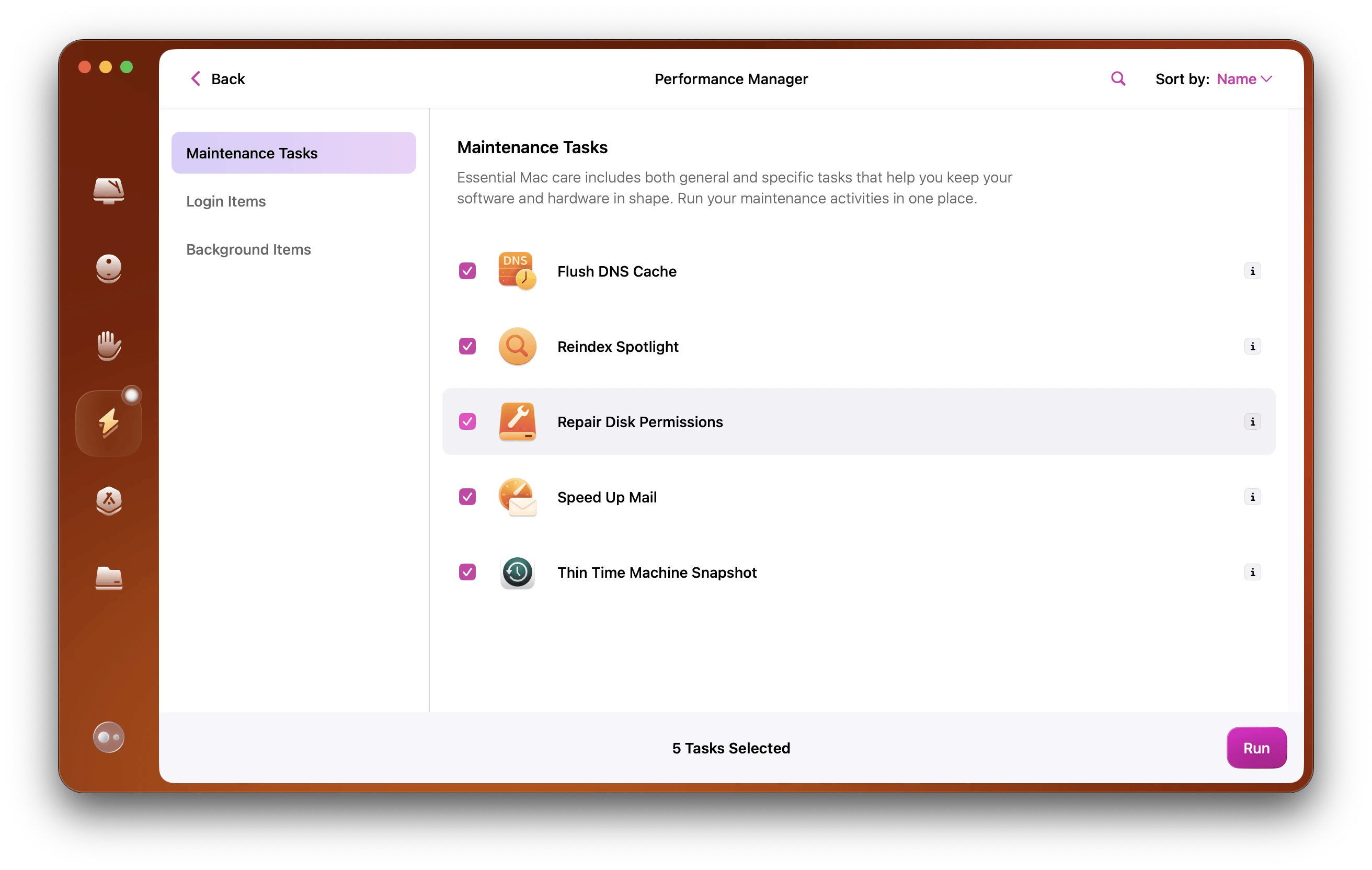
MacOS has built-in tools, but some third-party apps make managing background processes easier.
Popular Tools
- CleanMyMac X: Scans for unnecessary background processes and startup items.
- AppCleaner: Removes apps and their hidden helpers.
- IStat Menus: Monitors real-time CPU, RAM, and background activity.
How They Help
Third-party tools can:
- Identify hidden helpers
- Remove leftover files from deleted apps
- Monitor resource spikes
Some tools give you a clear overview of processes running in the background. CleanMyMac X, for example, shows which startup items slow your Mac and recommends which to disable.
Caution
Always download from trusted sources. Some “cleaning” apps are scams or cause more problems.
Read reviews and check for official certification. If an app promises “instant speed” without explaining how, be careful.
Credit: setapp.com
Managing Resource-hungry Browsers
Web browsers, especially Google Chrome, run many background processes—even when minimized.
Chrome Helpers
Chrome uses helper processes for each tab, extension, and web app. These can use significant CPU and RAM.
If you have many extensions or tabs open, Chrome can use more resources than any other app.
Data Table: Browser Helper Process Comparison
| Browser | Average Helper Processes | CPU Usage (%) | RAM Usage (MB) |
|---|---|---|---|
| Google Chrome | 6-12 | 10-30 | 500-1200 |
| Safari | 2-5 | 5-18 | 300-700 |
| Firefox | 3-7 | 8-20 | 400-900 |
How To Reduce Browser Helpers
- Close unused tabs.
- Disable extensions you don’t need.
- Quit the browser when not in use.
Safari is generally lighter on resources than Chrome. Switching browsers can help reduce background activity.
A non-obvious tip: Some browser extensions keep working even when you’re not browsing. Disable or remove extensions you rarely use for a leaner system.
Updating Macos And Apps
Outdated software can run inefficient processes or have bugs that cause resource spikes.
Keeping Software Up To Date
- Open System Settings > Software Update.
- Install updates for macOS.
- Update all apps via the App Store or their own updaters.
Updates often include fixes for background process issues.
For example, Apple regularly improves how system services like Spotlight and iCloud behave. Installing updates can fix high CPU usage or memory leaks.
Example
In macOS Monterey, Apple improved how Spotlight indexes files, reducing CPU usage by up to 40% compared to older versions.
Similarly, many app updates reduce background helper activity or improve memory management. Always check for updates, especially if you notice slowdowns.

Credit: www.businesswire.com
Dealing With Malware And Unwanted Software
Malware and adware often run hidden background processes that slow your MacBook.
How To Check For Malware
- Use Activity Monitor to spot unknown processes.
- Install a trusted antivirus tool (like Malwarebytes for Mac).
- Remove suspicious apps.
Even legitimate-looking apps downloaded from untrusted sites may run hidden background tasks.
Common Mistake
Some users skip antivirus because macOS is “safe. ” But malware can still slip through, especially from untrusted downloads.
A less obvious insight: Adware often hides as browser extensions. Check your browser’s extension list and remove anything you don’t recognize.
Advanced Terminal Commands
For those comfortable with Terminal, you can control processes directly.
Useful Commands
- `top`: View real-time processes.
- `kill`: Stop a process by PID.
- `ps aux | grep [appname]`: Find all processes related to an app.
You can also use `sudo launchctl list` to see all launch agents and daemons.
Example
To stop a runaway process:
- Find its PID in Activity Monitor or with `ps aux`.
- Type `kill [PID]` in Terminal.
Warning
Only kill processes you recognize. Stopping system tasks can cause instability.
For advanced users, consider researching each process before stopping it. Some helpers are needed for system stability.
Optimizing System Preferences
Some system settings can reduce background activity.
Energy Saver
Adjusting Energy Saver settings can limit resource use:
- Open System Settings > Battery.
- Set display sleep and computer sleep to shorter times.
- Disable “Power Nap” (runs tasks during sleep).
“Power Nap” allows your Mac to perform background tasks during sleep, but this can drain battery and keep helpers running longer.
Notifications
Too many notifications can trigger background processes.
- Go to System Settings > Notifications.
- Turn off notifications for apps you don’t need.
Some apps, like messaging tools, start helpers to check for new messages. Disabling notifications for less important apps reduces background work.
Regular Maintenance Tips
Keeping your MacBook lean requires routine care.
Weekly Checklist
- Review startup items.
- Quit unused apps.
- Update macOS and apps.
- Check Activity Monitor for heavy processes.
- Run antivirus scan.
If you install new apps, check their settings for startup or background options. Remove them if not needed.
Monthly Tasks
- Uninstall apps you don’t use.
- Clean up files and folders.
- Check for software updates.
A non-obvious tip: After uninstalling apps, use AppCleaner or a similar tool to remove leftover files and helpers.
When To Consider A Fresh Install
If your MacBook is still slow after all steps, consider a clean install of macOS. This wipes all apps and settings, removing hidden background processes.
Steps For A Clean Install
- Back up important files.
- Download macOS from the App Store.
- Use Disk Utility to erase your drive.
- Install macOS from scratch.
This is a last resort, but often restores lost performance.
If you do a fresh install, only add back essential apps. Avoid reinstalling old utilities that may run unnecessary background tasks.
Real-life Success Stories
Many users have seen dramatic improvements by reducing background processes.
- A graphic designer cut startup items by half and saw boot time drop from 60 to 20 seconds.
- A student paused Dropbox syncing during study sessions, gaining an extra hour of battery life.
- An office worker switched from Chrome to Safari, noticing smoother multitasking and less heat.
Another case: A photographer noticed high fan noise during editing. After disabling iCloud Photos syncing and pausing Time Machine, the MacBook ran cooler and exported photos faster.
The key is regular review and taking action before slowdowns become severe.
Common Mistakes To Avoid
- Ignoring hidden helpers: Even after quitting apps, their helpers may stay active.
- Disabling essential system services: Don’t turn off processes like mds or WindowServer unless you know their purpose.
- Installing too many cleaning apps: Some add more background processes instead of helping.
- Neglecting updates: Outdated macOS and apps often run inefficiently.
Another mistake: Forgetting to restart after changes. Always reboot after removing startup items or disabling helpers to see the real effect.
Expert Recommendations
- Keep only essential startup items.
- Review cloud syncing and pause when not needed.
- Use Activity Monitor weekly to spot heavy processes.
- Update software regularly.
- Consider third-party tools for deeper control.
- Don’t ignore signs like fan noise or battery drain.
A non-obvious expert tip: After big changes—like uninstalling a cloud app—check Activity Monitor and the menu bar for leftover helpers. Sometimes, you need to manually remove them.
Frequently Asked Questions
How Do I Know Which Background Processes Are Safe To Stop?
Most system processes are essential—like WindowServer, mds, and kernel_task. Only stop processes you recognize from apps you installed. If unsure, search the process name online.
Does Quitting An App Stop All Its Background Processes?
Not always. Many apps, especially cloud services and browsers, leave helper processes running. Check Activity Monitor and quit helpers from the menu bar or the app’s preferences.
Will Reducing Background Processes Improve Battery Life?
Yes. Fewer background tasks mean less CPU and RAM usage, which leads to longer battery life. For example, pausing cloud sync can add up to 30% more battery time.
Can Background Processes Affect My Macbook’s Temperature?
Absolutely. Heavy background activity makes the CPU work harder, generating heat. If your MacBook feels hot or the fan runs often, check for excessive background processes.
What’s The Safest Way To Remove Unwanted Background Processes?
Start with Activity Monitor and System Settings. Remove unneeded startup items and app helpers. For deeper cleaning, use trusted third-party tools. Avoid force-quitting unknown system tasks.
Reducing background processes on your MacBook isn’t just about speed—it’s about making your device last longer and work smarter. By following these steps, you’ll enjoy a smoother, quieter, and more reliable MacBook experience. For more advanced tips, Apple’s official support pages offer extra guidance: Apple Support. Take charge of your MacBook’s performance today, and see the difference for yourself.

 MacBook Gear
