


MacOS is known for its speed, smooth interface, and reliability. But even the best systems can slow down over time. Many users notice their Mac becomes less responsive, apps take longer to open, and battery drains faster. If you want your Mac to work at its full potential, you need to optimize it for maximum speed and efficiency. In this guide, you’ll learn practical steps to make your Mac faster, more efficient, and more enjoyable to use.
You don’t need to be a tech expert to follow these tips. With clear instructions and smart advice, you’ll discover how to clean up your system, adjust settings, and make simple changes that create big improvements. Whether you use your Mac for work, study, or entertainment, these proven techniques will help you get the best performance possible.
You’ll also learn how to build habits that keep your Mac running smoothly day after day.
Understand Why Your Mac Slows Down
Before you start optimizing, it’s important to know why Macs slow down. Many problems are easy to fix once you know what causes them.
- Too many apps running: Each open app uses memory and CPU. If you keep many apps open, your Mac works harder and slows down. Even apps running in the background (like music players or cloud sync tools) can add up quickly.
- Old or unused files: Large files, downloads, or duplicate photos take up storage space. When your disk is almost full, your Mac can’t run efficiently. Think about those movie downloads, old backups, or large zip files you forgot.
- Outdated software: Old versions of macOS or apps often have bugs or inefficiencies. Updating improves speed and security. Sometimes, apps running old code can conflict with newer system features, leading to slowdowns.
- Background processes: Hidden programs (like auto-updaters) run quietly but use resources. These include helper tools, syncing services, and even browser extensions.
- Visual effects: Fancy animations look nice but use extra power. If your Mac is older, these effects can become a burden.
- Hardware aging: Older Macs may have slower hard drives, less RAM, or weaker processors. Hardware also wears out over time, making operations slower.
Knowing these causes helps you target the right solutions. Beginners often miss that not just big apps, but even small background tools, can have a big impact. For example, a tiny calendar app or a clipboard manager can use more resources than you expect.
Also, sometimes a single malfunctioning app can slow down the whole system.
Clean Up Storage For Faster Performance
A full hard drive is one of the biggest reasons for slow Macs. Keeping at least 10–20% of your disk free is ideal. Here’s how to clear up space:
Remove Unused Apps
Go to Finder > Applications. Drag unused apps to the Trash. Don’t forget to empty the Trash afterward. Some apps leave behind support files. To fully remove them:
- Open Finder and press Shift + Command + G.
- Type ~/Library/Application Support/.
- Delete folders linked to the app you removed.
It’s easy to overlook apps you installed “just to try,” so take a careful look. If you see apps you haven’t used in months, it’s safe to remove them. Uninstalling apps also frees up launch agents and helper files that may run in the background.
Delete Large And Duplicate Files
Use the built-in Storage Management tool:
- Click the Apple logo > About This Mac > Storage > Manage.
- Review recommendations for cleaning up files.
- Look for large files, old downloads, and duplicate photos.
Photos, videos, and music files are often the biggest culprits. Duplicate files can happen when you save copies for backup or work on projects. For more powerful cleaning, apps like DaisyDisk or CleanMyMac X can help find hidden junk. But you can do much manually. Check your Downloads, Documents, and Movies folders for files you don’t need.
Move Files To External Storage Or Cloud
If you have many photos, videos, or documents:
- Move them to an external hard drive.
- Use cloud services like iCloud Drive, Dropbox, or Google Drive.
Cloud storage keeps your files safe and frees up space. An external drive is good for backups or large media files. For example, moving your photo library to an external SSD can free up dozens of gigabytes.
Compare Storage Cleaning Options
Here’s a quick comparison of manual cleaning, built-in tools, and third-party apps:
| Method | Ease of Use | Effectiveness | Cost |
|---|---|---|---|
| Manual Cleanup | Moderate | High (if thorough) | Free |
| Storage Management Tool | Easy | Medium | Free |
| Third-Party Apps | Very Easy | High | Paid |
Manual cleanup gives you full control and teaches you where your files are. Built-in tools are quick and safe. Third-party apps find hidden files and automate cleaning, but make sure you use trusted apps.
Update Macos And Apps Regularly
Keeping your operating system and apps updated is crucial for speed and security. Updates fix bugs, improve compatibility, and sometimes make your Mac faster.
- Go to System Settings > General > Software Update.
- Turn on automatic updates if you want your Mac to stay current without reminders.
App updates are equally important. Open the App Store, click Updates, and install everything. Some apps (like Chrome) update themselves, but others need manual attention.
Non-obvious tip: Some updates require a restart to activate new features. Restart your Mac after big updates for best results.
Updating also closes security holes. If you delay updates, your Mac can become vulnerable to malware or bugs that slow it down. Sometimes, even small app updates can fix memory leaks or improve battery life.
Manage Startup Items And Background Processes
Many programs set themselves to start when you log in. This can make your Mac slow to boot and use extra resources.
Check Login Items
- Go to System Settings > Users & Groups > Login Items.
- Remove any apps you don’t need to start automatically.
Be careful with system tools and antivirus apps—some need to run at startup. But most apps (like music players or cloud sync tools) don’t need to start every time.
Quit Background Apps
Open Activity Monitor (found in Applications > Utilities). This tool shows what’s running:
- Sort by CPU or Memory to see which apps use the most.
- Select unnecessary apps and click the X button to quit them.
Some apps, like browsers or messaging tools, run background processes even after you close their windows. Activity Monitor helps you spot these hidden users.
Disable Unnecessary Services
Some services (like Bluetooth, AirDrop, or Spotlight indexing) use resources. Turn off what you don’t need in System Settings.
Spotlight can be especially demanding when indexing new files. If you store lots of external drives, exclude them from Spotlight to speed things up.
Comparing Startup Item Management
| Startup Item | Impact on Speed | How to Disable |
|---|---|---|
| Dropbox | Moderate | Login Items |
| Slack | Low | Login Items |
| Adobe Creative Cloud | High | Login Items/Activity Monitor |
Insight: Many users don’t realize that even small menu bar apps (like calendar widgets) start at login and use RAM. If your menu bar is crowded, check which tools start automatically.
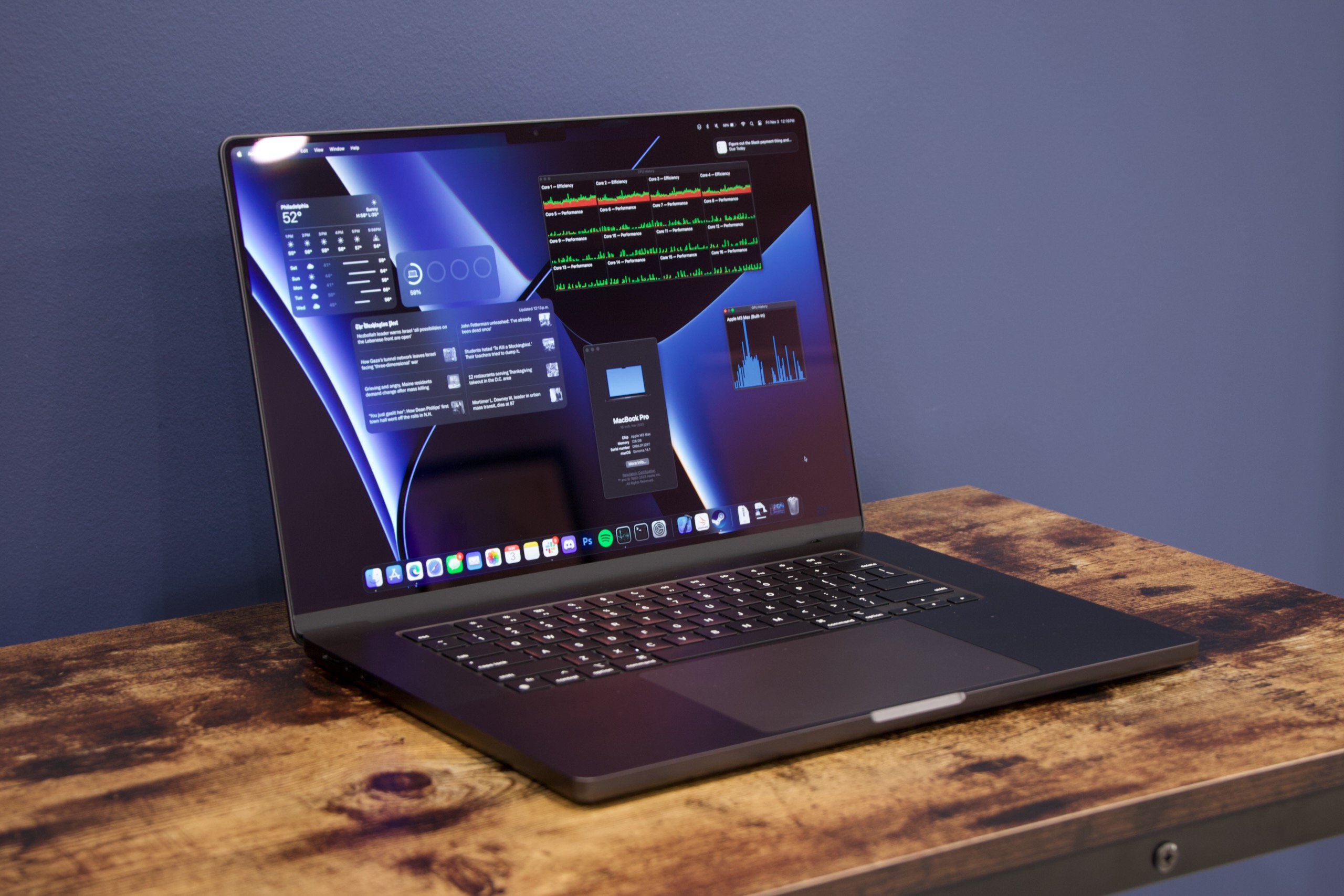
Credit: arstechnica.com
Optimize System Settings For Efficiency
MacOS offers many settings that can improve speed and save battery. Adjusting these can make your Mac feel faster instantly.
Reduce Visual Effects
Fancy animations and transparency use extra resources. Turn them off:
- Go to System Settings > Accessibility > Display.
- Enable Reduce motion and Reduce transparency.
This not only speeds up older Macs but also reduces eye strain. You’ll notice windows open and close faster.
Adjust Energy Saver Settings
For laptops, battery life and speed often trade off. To get more speed:
- Go to System Settings > Battery.
- Set Turn display off sooner.
- Disable Power Nap if you don’t need background tasks.
Power Nap lets your Mac update mail and apps when sleeping, but it uses energy and may slow down waking.
Turn Off Unused Features
- Disable Bluetooth if you don’t use wireless devices.
- Turn off Wi-Fi when not needed.
- Reduce Spotlight indexing by excluding folders.
Less active features mean less background activity. If you use wired headphones, Bluetooth isn’t needed.
Customize Finder Preferences
Finder can be slow if it shows too many files:
- Open Finder > Preferences.
- Set New Finder windows show to a folder with few files.
- Uncheck Show all filename extensions if you don’t need them.
Finder also loads preview thumbnails—turning off previews in folders with lots of images speeds things up.
Upgrade Hardware For Real Speed Boosts
Software tweaks help, but sometimes hardware upgrades make the biggest difference. If your Mac is older, consider these options:
Add More Ram
More RAM means your Mac can handle more apps at once. For many older Macs, upgrading RAM gives a huge speed boost. Check if your Mac model allows RAM upgrades.
RAM upgrades are especially useful for those who multitask—if you run browsers, email, and editing tools together, more RAM helps.
Switch To Ssd Storage
If your Mac still uses a hard disk drive (HDD), moving to a solid-state drive (SSD) speeds up boot time and file access. SSDs are much faster and use less energy.
Boot times can drop from minutes to seconds. File transfers and app launches are much quicker. SSDs are also quieter and more reliable.
Replace Battery (for Laptops)
A weak battery can make your Mac throttle performance. Replacing it can restore speed and battery life.
New batteries deliver consistent power, so your Mac doesn’t slow down to save energy.
Compare Hardware Upgrades
| Upgrade | Speed Boost | Cost (Approx.) | Difficulty |
|---|---|---|---|
| RAM | High | $50–$200 | Moderate |
| SSD | Very High | $100–$300 | Moderate |
| Battery | Medium | $70–$150 | Easy/Moderate |
Non-obvious insight: Even if you only upgrade RAM or SSD, your Mac will feel like a new machine. Many users wait too long before upgrading. If you work with large files or edit videos, SSD upgrades are especially valuable.
Use Efficient Browsers And Apps
Some apps are more demanding than others. Choosing lightweight apps makes your Mac faster and uses less battery.
Choose Efficient Browsers
Safari is optimized for macOS and uses less memory than Chrome or Firefox. If you need multiple browsers, try Brave or Opera, which are lighter than Chrome.
Safari also syncs better with macOS features like Keychain and Handoff, making browsing smoother.
Avoid Resource-heavy Apps
Apps like Adobe Photoshop, Microsoft Teams, or Slack are known to use lots of RAM. For simple tasks, use alternatives like Preview (for images) or Pages (for documents).
If you only need to view a PDF, Preview is faster and simpler than Adobe Acrobat.
Close Tabs And Windows
Browsers can slow down your Mac if you keep too many tabs open. Try to keep less than 10 tabs at a time.
Example: If you need to edit a PDF, use Preview instead of Adobe Acrobat. Preview uses less memory and opens faster.
Insight: Many users ignore app alternatives. Trying built-in macOS apps for basic tasks saves resources and time.
Clear Cache And Temporary Files
Your Mac stores temporary files and caches to speed things up, but over time these can actually slow your system.
Clear System Cache
- Open Finder, press Shift + Command + G.
- Type ~/Library/Caches.
- Delete folders that are not needed.
Cache files include web data, app preferences, and temporary downloads. Clearing these gives your Mac a fresh start.
Empty Browser Cache
Browsers like Safari and Chrome keep their own cache:
- For Safari, go to Develop > Empty Caches.
- For Chrome, open Settings > Privacy > Clear browsing data.
A bloated browser cache can make websites load slowly or cause errors.
Remove Old Logs
System logs can grow large. To clean:
- Open Finder, press Shift + Command + G.
- Type ~/Library/Logs.
- Delete old log files.
Logs track app activity, errors, and system events. Keeping only recent logs is enough.
Tip: Don’t delete caches or logs you don’t recognize. Most are safe, but some apps may need their own cache. If unsure, move files to the Trash but don’t empty it until you see if things work.

Credit: www.youtube.com
Organize Your Desktop And Files
A messy desktop slows down Finder and uses extra memory. Keeping your files organized helps your Mac run smoother.
Minimize Desktop Icons
Each icon is treated as a mini-window. Limit icons to less than 10. Move files to folders.
Too many icons not only slow Finder but also distract you. A clean desktop helps you focus.
Use Folders And Tags
Organize files into folders by type or project. Use color tags to find important files quickly.
Tags are great for sorting documents, photos, or work projects. You can search by tag to find files instantly.
Regular Maintenance
Set a reminder to clean your desktop and downloads folder once a week.
Make it a habit—spending five minutes each week keeps your Mac tidy and fast.
Insight: Many beginners think desktop icons don’t matter, but they have a real impact on speed. Finder loads every icon at startup.
Monitor Your Mac’s Health
Macs have built-in tools to check system health, battery, and storage.
Use Activity Monitor
Open Activity Monitor to see:
- CPU usage
- Memory usage
- Energy impact
Look for apps that use too many resources and quit them. You can also spot apps that use a lot of energy, draining your battery.
Check Battery Health
Go to System Settings > Battery > Battery Health. If it says Service Recommended, consider replacing the battery.
A healthy battery keeps your Mac running at full speed. Low health can make your Mac slow down to save power.
Disk Utility
Use Disk Utility to check for errors:
- Open Applications > Utilities > Disk Utility.
- Select your disk and click First Aid.
This can fix minor disk problems and improve speed. Disk Utility can also spot early signs of hardware failure.
Set Up Automated Maintenance
Automating routine tasks keeps your Mac running smoothly without extra effort.
Enable Automatic Updates
Turn on auto-updates for macOS and apps. This ensures you get the latest fixes and improvements without checking manually.
Schedule Backups
Use Time Machine to back up your Mac regularly. This protects your data and lets you recover if something goes wrong.
Set Time Machine to run every day or week. Backups are essential if you make big changes or install updates.
Set Up Cleaning Scripts
Advanced users can create scripts to clean cache or temporary files. For most users, using built-in tools is enough.
If you want to automate cleaning, tools like Automator can help run simple scripts.
Advanced Tips For Power Users
If you want to go further, these advanced tricks can help you squeeze even more speed.
Trim Startup Daemons
Some system services start with macOS. Use LaunchControl or Terminal to disable unnecessary daemons.
Check which daemons are needed—removing the wrong ones can cause problems. Always make backups before changing system files.
Manage Virtual Memory
macOS uses virtual memory (swap) when RAM is low. To reduce swap:
- Close unused apps
- Upgrade RAM if possible
Swap slows down when your disk is full or slow. Keeping free space helps.
Reset Smc And Nvram
Resetting the System Management Controller (SMC) and NVRAM can fix battery, display, and performance issues.
- To reset SMC: Shut down, hold Shift + Control + Option + Power for 10 seconds, then release.
- To reset NVRAM: Restart, hold Command + Option + P + R for 20 seconds.
Warning: Only use these resets if you experience specific problems. Don’t reset randomly—check Apple’s instructions first.
Example: If your fan runs constantly or your battery acts strange, SMC reset can help.
Avoid Common Mistakes
Optimizing your Mac is easy if you avoid these mistakes:
- Deleting system files you don’t understand.
- Using too many third-party cleaners (some can cause problems).
- Ignoring updates and security patches.
- Overloading your desktop with files.
- Running heavy apps together (like Photoshop and Final Cut Pro).
- Forgetting to back up before making changes.
Beginner insight: It’s better to do small, regular maintenance than one big clean-up once a year. Also, avoid downloading random cleaning apps—stick to trusted tools.
How To Keep Your Mac Fast Over Time
Optimizing once isn’t enough. Keeping your Mac fast is about habits.
- Restart your Mac every few days. This clears memory and applies updates.
- Clean up files regularly. Set a reminder each month.
- Update apps as soon as new versions are released.
- Monitor activity and quit apps you don’t need.
- Back up data weekly to avoid losing important files.
With these habits, your Mac will stay fast for years. Remember, prevention is easier than fixing a slow system later.
Frequently Asked Questions
How Often Should I Clean Up My Mac’s Storage?
It’s best to clean up storage once a month. Remove old files, empty the Trash, and review downloads. If you use your Mac heavily, do this every two weeks.
Will Upgrading Ram Or Ssd Void My Mac’s Warranty?
Upgrading RAM or SSD on many Macs (especially older models) doesn’t void the warranty, but always check Apple’s policy for your model. Newer Macs often have soldered components and cannot be upgraded.
Can I Use Windows-style Disk Cleanup Tools On Macos?
No, most Windows tools won’t work on macOS. Use built-in tools like Storage Management or trusted apps like CleanMyMac X. Avoid random online cleaners.
Why Does My Mac Slow Down After A Big Update?
Major updates sometimes rebuild system caches and re-index Spotlight, which can slow things down for a few days. Restart your Mac and give it time; speed usually returns.
Is It Safe To Delete Cache And Log Files Manually?
Yes, but only delete files in ~/Library/Caches and ~/Library/Logs. Avoid deleting system files you don’t recognize. When in doubt, use built-in cleaning tools.
Final Thoughts
Optimizing macOS for maximum speed and efficiency isn’t just about cleaning out old files. It’s about understanding your system, making smart changes, and keeping good habits. Whether you adjust settings, upgrade hardware, or automate maintenance, every step makes a difference. Many people miss the simple fixes that turn a slow Mac into a fast, reliable machine. By following these practical tips and avoiding common mistakes, you’ll enjoy a smoother, more efficient Mac experience every day. For more details on macOS performance, you can visit Apple Support.
With the right habits and tools, your Mac will stay fast, reliable, and enjoyable to use—even as it gets older.

Credit: solidboris.com

 MacBook Gear
