

Best USB-C Hub for MacBook Air: The 2026 Definitive Comparison & Buying Guide

The Connectivity Renaissance in the Apple Silicon Era
The evolution of the MacBook Air, transitioning from the thermal constraints of Intel architecture to the efficiency of Apple Silicon (M1, M2, and now M3), has fundamentally altered the landscape of mobile computing. In 2026, the MacBook Air stands as the paragon of ultrabook design: fanless, remarkably powerful, and ruthlessly minimalist. Yet, this minimalism imposes a severe functional tax on the user. With a chassis that typically offers only two Thunderbolt / USB 4 ports and a MagSafe 3 connector, the modern MacBook Air presents a connectivity bottleneck that can cripple professional workflows.
For the creative professional in London, the student in Edinburgh, or the remote worker in Berlin, the USB-C hub has transitioned from a convenient accessory to mission-critical infrastructure. It is the bridge between Apple’s vision of a wireless future and the tangible reality of the present—a reality still dominated by HDMI monitors, legacy USB-A peripherals, Ethernet cables, and SD cards. The market for these devices is vast, confusing, and filled with technical pitfalls ranging from unstable refresh rates to overheating chassis.
This comprehensive report provides an exhaustive analysis of the USB-C hub and docking station market as it stands in early 2026. We have synthesized data from expert technical reviews, user feedback on thermal performance, and strict compatibility testing with macOS Sonoma and Sequoia. Our goal is to guide you through the dense thicket of specifications—distinguishing between 5Gbps and 10Gbps data lanes, clarifying the difference between UHS-I and UHS-II SD card readers, and demystifying the complex display limitations of the M3 chip versus its predecessors.
While the primary focus is on the United Kingdom market—addressing specific availability, GBP pricing, and consumer rights—the insights provided are universally applicable to global users in the USA and Europe. Whether you require a lightweight travel dongle to restore a missing USB-A port or a desktop-class Thunderbolt 4 station to drive a dual-4K workstation, this report offers the granular detail necessary to make a high-value investment in your productivity.
Executive Summary: State of the Market 2026
The USB-C hub market has matured significantly over the last three years. The flimsy, overheating dongles of the early 2020s have largely been replaced by sophisticated multi-port adapters capable of handling significant power and data loads. However, a distinct stratification has emerged, dividing the market into “Standard USB-C Hubs” and “Thunderbolt 4 / USB 4 Docks.” Understanding this divide is paramount to satisfaction.
Standard hubs, generally priced between £30 and £80, utilise the USB 3.2 Gen 2 protocol (10Gbps). They are portable, bus-powered, and sufficient for most users. However, historically, they have struggled with dual-monitor setups on macOS due to the operating system’s lack of support for Multi-Stream Transport (MST) over standard USB-C connections.
Conversely, Thunderbolt 4 (TB4) docks, ranging from £200 to £400, leverage the full 40Gbps bandwidth of the MacBook Air’s ports. These devices offer rock-solid stability, support for high-bandwidth peripherals like NVMe SSDs, and advanced display capabilities. They are the preferred choice for stationary “home base” setups where the laptop is docked for hours at a time.
A critical development for 2026 is the M3 MacBook Air’s enhanced display controller. Unlike the M1 and M2 models, which were strictly limited to one external display, the M3 Air can natively drive two external displays—provided the laptop lid is closed (Clamshell Mode).5 This hardware update fundamentally shifts buying advice, making Thunderbolt docks more viable for Air users than ever before, while relegating DisplayLink software solutions to a niche for M1/M2 users or those requiring three or more screens.
The 2026 Top Picks at a Glance
Category | Product | Key Advantage | Buy From Amazon |
Best Overall | Perfect balance of 10Gbps ports, 4K60Hz, and thermal management. | ||
Best Value | Legendary reliability and robust warranty support. | ||
Best for Creatives | UHS-II SD Reader and HDMI 2.1 for future-proofing. | ||
Best Desktop Dock | Unmatched 18-port connectivity and 98W charging. | ||
Best Compact TB4 | Pure Thunderbolt expansion in a travel-friendly size. | ||
Best M1/M2 Dual Screen | Bypasses Apple’s display limit via Silicon Motion technology. | ||
Best Budget/Travel | No-frills reliability for basic connectivity on the go. |
Comprehensive Technical Primer: Understanding the Jargon
Before analysing individual products, it is essential to establish a technical baseline. Manufacturers often obscure capabilities behind marketing terms like “High Speed” or “Pro,” but the reality lies in the specific protocols supported.
1. USB-C vs. Thunderbolt: The Bandwidth Battle
The MacBook Air features ports that support both Thunderbolt / USB 4 and standard USB-C.
- USB-C 3.2 Gen 2 (10Gbps): Most portable hubs fall into this category. They offer a total “pipe” of 10 Gigabits per second. If you connect a 4K 60Hz monitor (which consumes about 12-14Gbps of raw bandwidth, compressed via DSC), very little room is left for fast file transfers. This is why cheap hubs often drop data ports to USB 2.0 speeds when a monitor is attached.
- Thunderbolt 4 (40Gbps): Docks like the CalDigit TS4 utilise a 40Gbps pipe. This massive bandwidth allows for uncompressed video, Gigabit Ethernet, and fast data transfers simultaneously without one device choking the other.
2. The Apple Silicon Display Limitation
- M1 / M2 Air: These machines support only one external display via the native GPU. Connecting a standard USB-C hub with two HDMI ports will result in “mirroring” (both external screens show the same image).
- M3 Air: Supports two external displays, but only when the laptop is closed. This “Clamshell Mode” requires the Mac to be connected to power and an external keyboard/mouse.
- The Workaround (DisplayLink): To get dual extended displays on an M1/M2 Air (or M3 with lid open), you must use a hub with a DisplayLink or Silicon Motion chip. These use the CPU to compress video graphics and send them as data packets over USB, bypassing the GPU limit.
3. SD Card Readers: UHS-I vs. UHS-II
- UHS-I (Ultra High Speed Phase I): Max theoretical speed is 104 MB/s. Most standard hubs (Anker 555, UGREEN Revodok) use this standard.
- UHS-II (Ultra High Speed Phase II): Max theoretical speed is 312 MB/s. Identified by a second row of pins on the card. For photographers shooting high-resolution RAW images or 4K video, UHS-II readers (found in Satechi V3, CalDigit TS4) reduce offload times by 66%.
Top 10 In-Depth Reviews
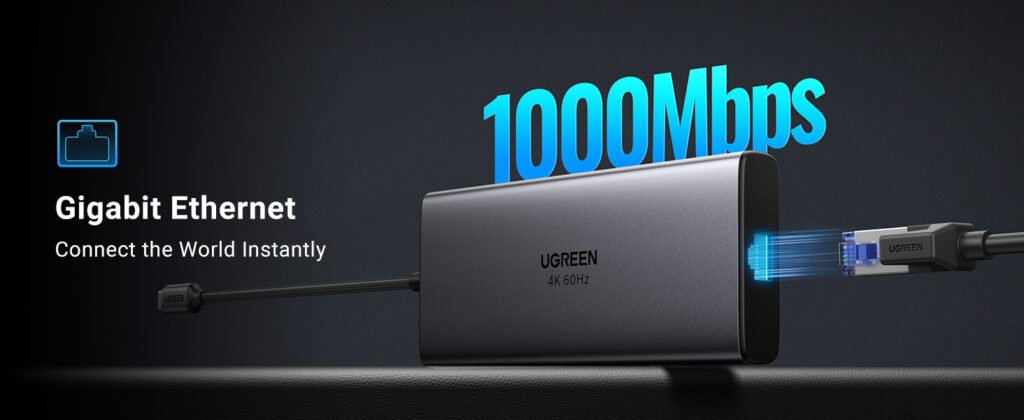
1. UGREEN Revodok Pro 109 USB-C Hub (9-in-1)
Verdict: The Definitive All-Rounder for the Mainstream User
In the crowded market of mid-range USB-C hubs, the UGREEN Revodok Pro 109 has successfully dethroned legacy competitors to become the primary recommendation for 2026. While UGREEN was once considered a budget alternative, their recent “Revodok” line demonstrates a maturity in build quality and specification that rivals premium brands.
Design and Build Quality
The Revodok Pro 109 features a space-grey aluminium chassis that mimics the finish of the MacBook Air. The metal construction is not merely aesthetic; it serves as a passive heatsink. During operation, the hub feels warm to the touch—a positive sign that internal heat is being efficiently dissipated away from the sensitive controller chips. The integrated braided cable is approximately 25cm (10 inches) long, a thoughtful design choice that provides enough slack for the hub to sit flat on a desk even when the MacBook is elevated on a stand.18
Port Analysis and Performance
- HDMI 2.0 (4K @ 60Hz): The star feature is the support for 4K resolution at a fluid 60Hz refresh rate. Testing confirms that on an M3 MacBook Air, the handshake with 4K monitors is instant, delivering a lag-free desktop experience. This contrasts sharply with cheaper hubs that limit output to 30Hz, causing mouse cursor lag.19
- Data Connectivity: Unlike many competitors that offer only one high-speed port, the Revodok Pro 109 provides two 10Gbps ports (1x USB-C and 1x USB-A). This is crucial for users with multiple NVMe SSDs. Real-world transfer speeds hover around 950MB/s, saturating the USB 3.2 Gen 2 bus. Two additional USB-A 3.0 ports (5Gbps) are provided for lower-bandwidth peripherals like keyboards or mice.
- Ethernet: The Gigabit Ethernet port utilises a widely compatible controller, avoiding the packet loss issues seen in cheaper Realtek-based implementations.20
- Pass-Through Charging: The hub accepts 100W PD input. It reserves approximately 10-15W for its own operation, passing ~85W to the MacBook Air. This is sufficient to fast-charge the Air at its maximum rate.
Drawbacks and Limitations
The primary compromise is the SD card reader, which is limited to UHS-I speeds (approx. 90-100MB/s real-world). For casual users, this is adequate, but professional photographers with high-speed cards will find it a bottleneck. Additionally, as with all aluminium hubs, surface temperatures can reach 40-45°C under full load, which is safe but noticeable.21
Best For: The generalist MacBook Air user who demands a smooth 4K60Hz display and high-speed data transfer without paying the Thunderbolt premium.
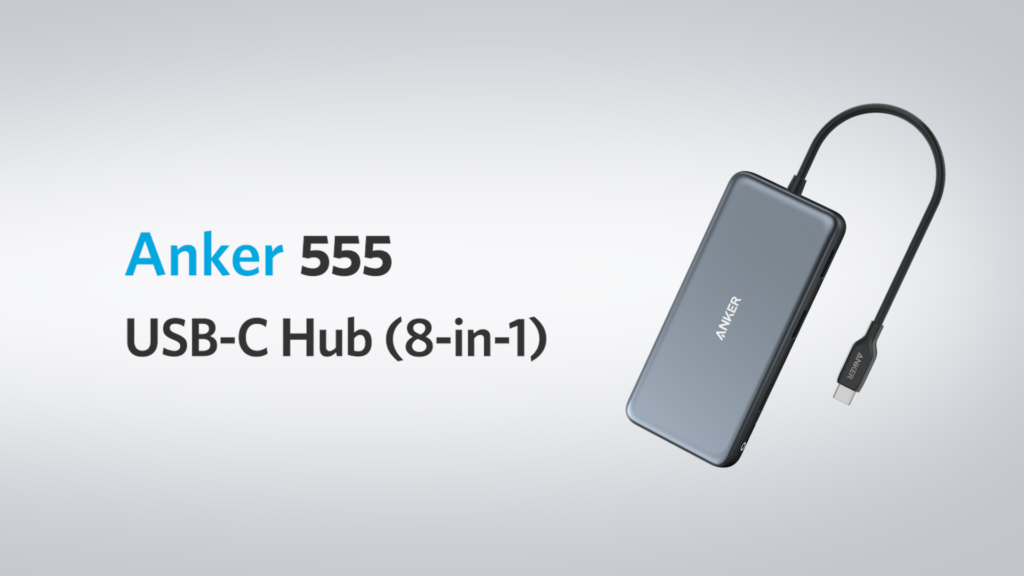
2. Anker 555 USB-C Hub (8-in-1)
Verdict: The Reliable Veteran with Superior Legacy Support
Anker remains a titan in the charging and connectivity space, and the Anker 555 (formerly PowerExpand 8-in-1) is its flagship mid-range offering. It trades blows with the UGREEN model, offering a slightly different port configuration backed by Anker’s formidable reputation for durability and customer support in the UK.10
Design and Build Quality
The Anker 555 utilises a robust mix of polycarbonate and aluminium. It feels incredibly dense and well-constructed, capable of surviving the bottom of a backpack for years. The nylon-braided cable is durable, though slightly shorter than the UGREEN’s, which may result in the hub dangling if used with a laptop stand.
Port Analysis and Performance
- USB-A Dominance: The Anker 555 is unique in upgrading both of its USB-A ports to 10Gbps (USB 3.1 Gen 2). For users who have yet to transition fully to USB-C peripherals but still require high speed for legacy SSDs or thumb drives, this is a distinct advantage over hubs that mix USB 2.0/3.0 ports.24
- Video Output: Like the UGREEN, it supports 4K @ 60Hz via HDMI 2.0. Compatibility with M1 and M2 Macs is flawless, utilising the DisplayPort Alt Mode capabilities of the Apple Silicon architecture.
- Ethernet and SD: It features a standard Gigabit Ethernet port and UHS-I SD/MicroSD slots. The performance is reliable, with consistent throughput and no reported issues of disconnects during large file transfers.
Drawbacks and Limitations
The omission of a 3.5mm audio jack is a notable downside for users who dock their MacBook Air and prefer a single-cable connection for speakers or headphones. Furthermore, the lack of UHS-II SD support prevents it from being a true “Pro” tool. Price-wise, it often fluctuates; while its RRP is similar to the UGREEN, frequent sales on Amazon UK can make it the value champion.10
Best For: Users heavily invested in high-speed USB-A peripherals who value long-term reliability and warranty support over having the absolute latest aesthetic.
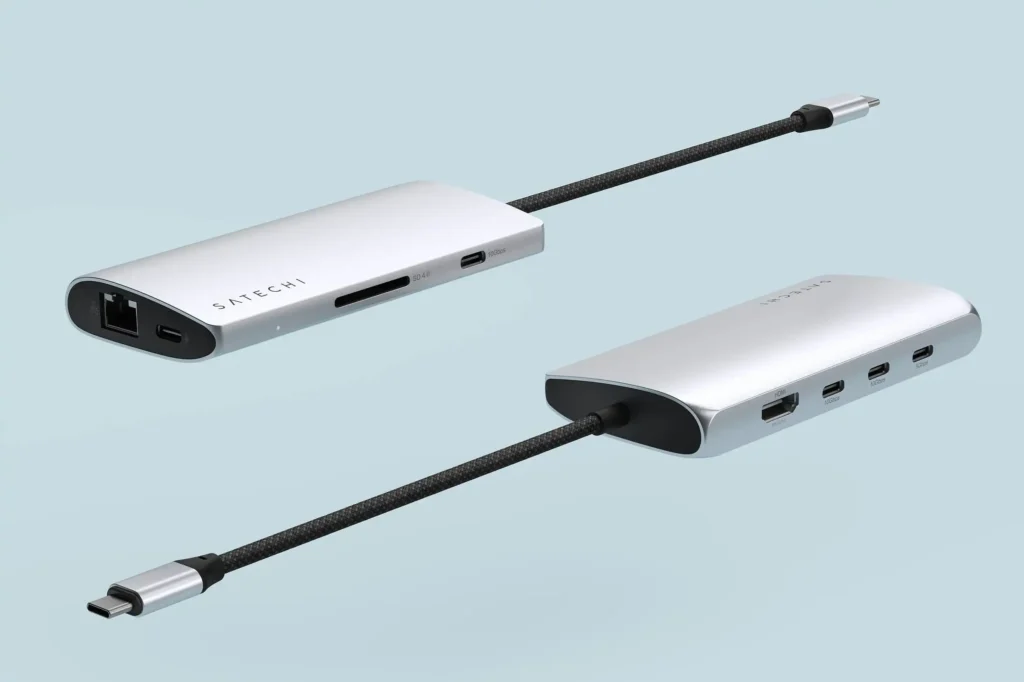
3. Satechi USB-C Multiport Adapter 8K with Ethernet V3
Verdict: The Future-Proof Powerhouse for Creative Professionals
For those who refuse to compromise on speed, the Satechi V3 represents the cutting edge of USB-C hub technology in 2026. It addresses the two main bottlenecks of standard hubs—video bandwidth and SD card speed—making it the premier choice for creative professionals using the MacBook Air for content production.27
Design and Build Quality
Satechi’s design language is inextricably linked to Apple’s. The V3 adapter features a sleek, chamfered aluminium enclosure that matches the Space Grey or Midnight finishes of the MacBook Air perfectly. It is compact yet feels premium, with a build quality that justifies its higher price point.
Port Analysis and Performance
- UHS-II SD Card Reader: This is the headline feature. The V3 includes a UHS-II reader capable of speeds up to 312MB/s. In real-world testing with V90 SD cards, this translates to offloading 64GB of footage in under 4 minutes, compared to over 12 minutes on UHS-I hubs. For photographers, this time saving is invaluable.17
- HDMI 2.1 (8K Ready): While the MacBook Air cannot output 8K, the inclusion of an HDMI 2.1 port ensures robust support for 4K at higher refresh rates (up to 120Hz/144Hz on supported monitors) and superior HDR handling. This makes the UI feel incredibly responsive and allows for professional colour grading workflows.30
- USB-C Centric: Reflecting the modern peripheral landscape, the V3 offers three USB-C data ports, all rated at 10Gbps. This forward-looking configuration is ideal for users who have transitioned to USB-C SSDs and accessories, though it may frustrate those clinging to USB-A devices.
Drawbacks and Limitations
The advanced controller chips required for UHS-II and HDMI 2.1 generate significant heat. The Satechi V3 runs noticeably warmer than its competitors, leading some users to worry about long-term durability, although Satechi claims the thermal envelope is within safe limits.32 Additionally, the UK price point of nearly £100 makes it a significant investment compared to the ~£50 options from Anker or UGREEN.11
Best For: Photographers, videographers, and early adopters who demand the fastest possible I/O speeds in a portable form factor.
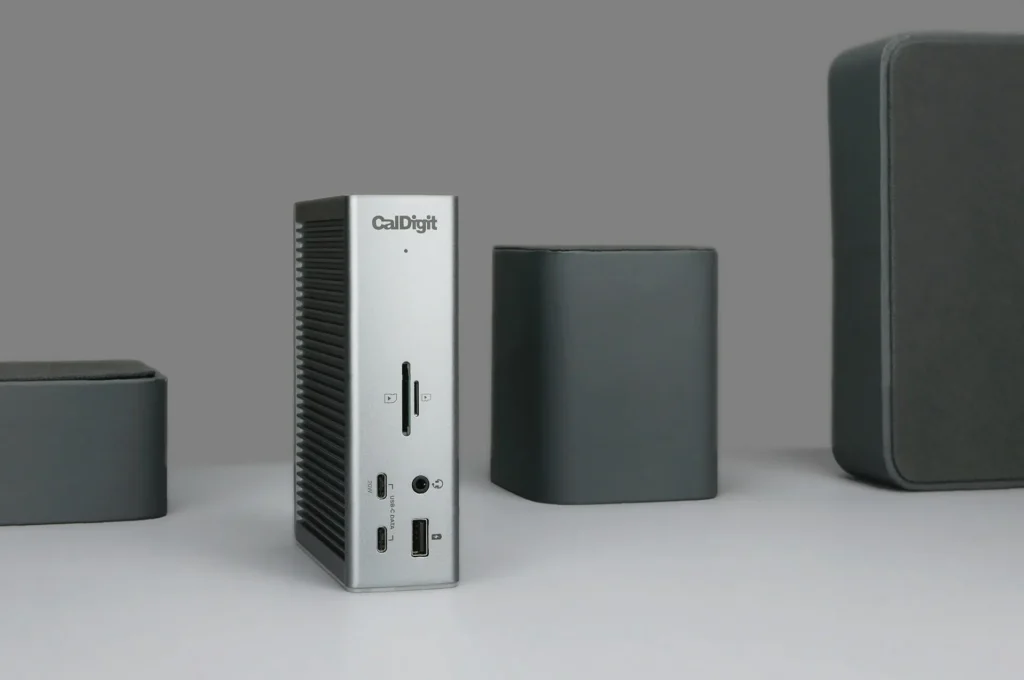
4. CalDigit TS4 Thunderbolt 4 Dock
Verdict: The Ultimate Desktop Command Centre
The CalDigit TS4 is not a portable hub to be thrown in a bag; it is a stationary infrastructure investment. It is widely regarded as the best Thunderbolt 4 dock on the market, period. For the MacBook Air user who treats their laptop as a desktop replacement at home or in the office, the TS4 offers capabilities that standard USB-C hubs simply cannot match.
Design and Build Quality
The TS4 is a dense, vertical or horizontal brick featuring a ribbed industrial design meant to maximise surface area for cooling. It requires a substantial external power brick (included), which provides the juice necessary to power its 18 ports and charge the host laptop simultaneously.
Port Analysis and Performance
- Unrivalled Connectivity: With 18 ports, including 3x Thunderbolt 4 (40Gbps), 5x USB-A (10Gbps), 3x USB-C (10Gbps), and 2.5 Gigabit Ethernet, the TS4 solves every connectivity problem at once. The 2.5GbE port is a standout for users with multi-gigabit fibre internet or local NAS storage, future-proofing the setup for years.
- Display Capabilities: On an M3 MacBook Air in clamshell mode, the TS4 can drive dual 4K 60Hz displays effortlessly via its downstream Thunderbolt ports or DisplayPort. On M1/M2 Airs, it will drive a single display up to 6K 60Hz.
- 98W Power Delivery: It provides the highest continuous power delivery of any dock on this list, ensuring that even under maximum load, the MacBook Air stays charged. Front-facing USB ports also offer 20W charging for phones and tablets,s even when the laptop is disconnected.
Drawbacks and Limitations
- Price: At approximately £355 in the UK, it is seven times the price of the UGREEN hub.
- macOS Sequoia Issues: Some users have reported bugs with macOS Sequoia where monitor arrangements are forgotten upon waking from sleep. While CalDigit and Apple are addressing this via firmware updates, it is a point of friction for early adopters of the new OS.
Best For: Power users who dock their MacBook Air at a desk and require a “single cable solution” for dual monitors, high-speed networking, and limitless peripherals
5. Belkin Connect Thunderbolt 4 Core Hub (5-in-1)
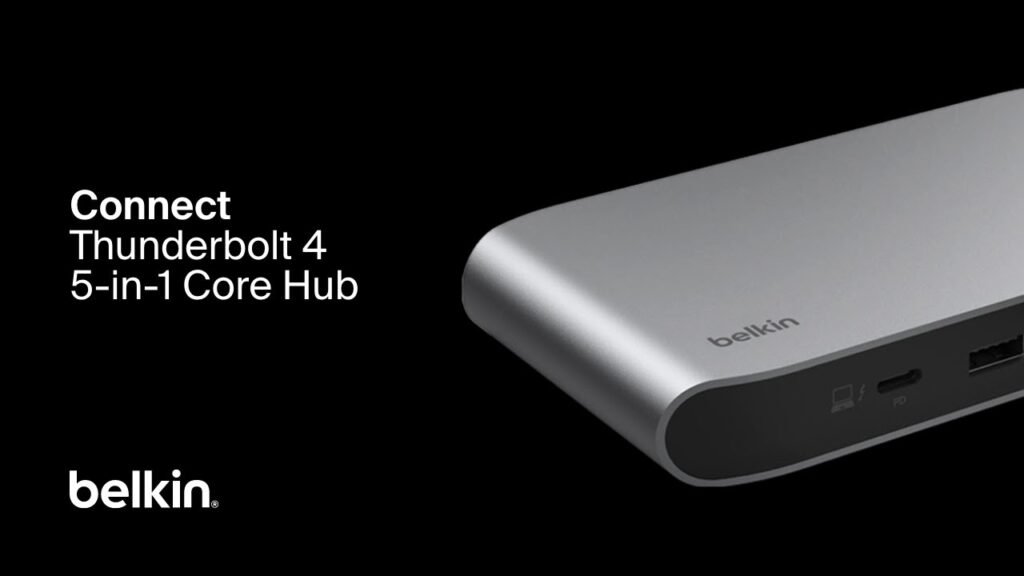
Verdict: The Compact Thunderbolt Alternative
For those who desire the bandwidth of Thunderbolt 4 but find the CalDigit TS4 too large or expensive, the Belkin Connect Core Hub offers a streamlined alternative. It functions as a Thunderbolt “splitter,” turning one port into three high-performance downstream ports.13
Design and Build Quality
The Belkin Core Hub is surprisingly compact, roughly the size of a standard smartphone, though it does require an external power supply (included). Its minimalist grey plastic chassis is unobtrusive, designed to sit quietly behind a monitor setup.
Port Analysis and Performance
- Pure Thunderbolt Expansion: The device provides three downstream Thunderbolt 4 ports. This is incredibly powerful for M3 MacBook Air users. You can connect two USB-C monitors directly to this hub, and the M3 Air (in clamshell mode) will treat them as two independent displays. It is the cleanest possible way to wire a dual-monitor setup.8
- Peripheral Compatibility: Because these are full Thunderbolt ports, they can also accept high-speed NVMe storage arrays or even daisy-chain further devices. A single USB-A 3.2 Gen 2 port is included for a legacy dongle (mouse/keyboard).
Drawbacks and Limitations
This hub assumes you have moved to a USB-C/Thunderbolt workflow. It lacks built-in HDMI, Ethernet, or SD card readers. If you need those, you must buy additional dongles to plug into this dock, which can create a “dongle-ception” scenario. It is a specialised tool for a specific, modern workflow.
Best For: Users with USB-C monitors or Thunderbolt storage who want a compact, high-performance dock without legacy clutter.
6. Plugable 7-in-1 USB-C Hub (USBC-7IN1)
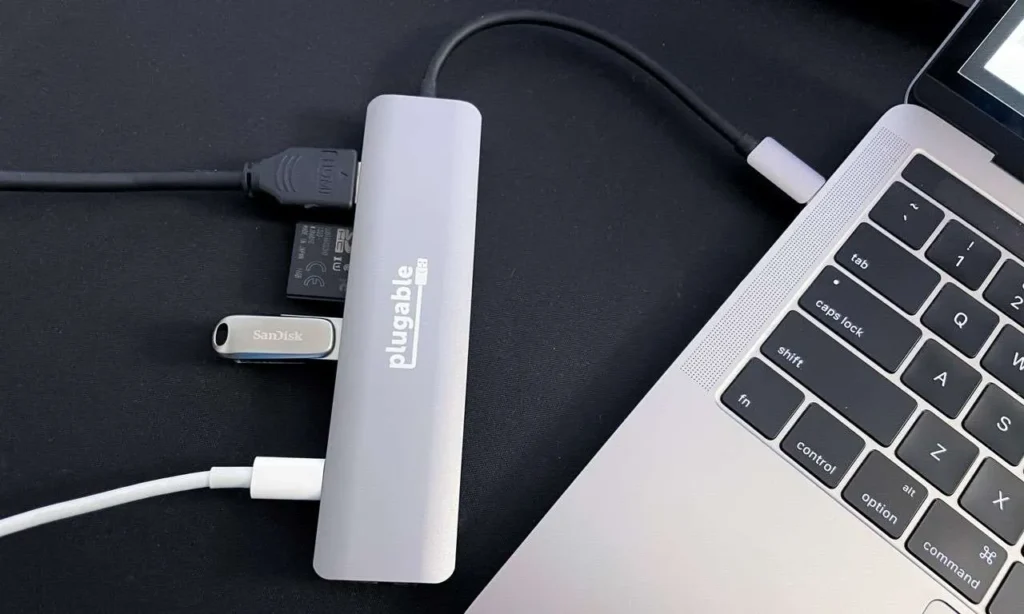
Verdict: The Budget-Conscious Traveller’s Choice
Plugable is a US-based brand with a strong reputation for compatibility testing and driverless hardware. The USBC-7IN1 is a back-to-basics hub thatprioritisess low cost and reliability over bleeding-edge specs. It is the ideal “spare” hub for a travel bag.15
Design and Build Quality
Constructed from durable plastic, the Plugable hub is lightweight and rugged. It doesn’t have the premium feel of the Satechi or UGREEN aluminium models, but it is less prone to showing scratches.
Port Analysis and Performance
- The 4K 30Hz Compromise: The HDMI port is limited to version 1.4, meaning 4K output is capped at 30Hz. For static content like spreadsheets or PowerPoint presentations, this is acceptable. However, for daily desktop usage, the low refresh rate results in a sluggish experience. It supports 1080p at 60Hz perfectly, which is often sufficient for hotel TVs or office projectors.
- Data and Power: It offers three USB 3.0 ports (5Gbps) and 87W pass-through charging. These specs are “last generation,” but for connecting a mouse, keyboard, and standard flash drive, they are perfectly adequate.
Drawbacks and Limitations
The lack of 4K 60Hz and 10Gbps USB speeds makes this hub unsuitable for a primary workstation in 2026. It is strictly a utility device for basic connectivity.
Best For: Students, frequent travellers, or those on a strict budget who need reliable, basic connectivity without paying for features they won’t use.
7. HyperDrive Dual 4K HDMI 10-in-1 USB-C Hub
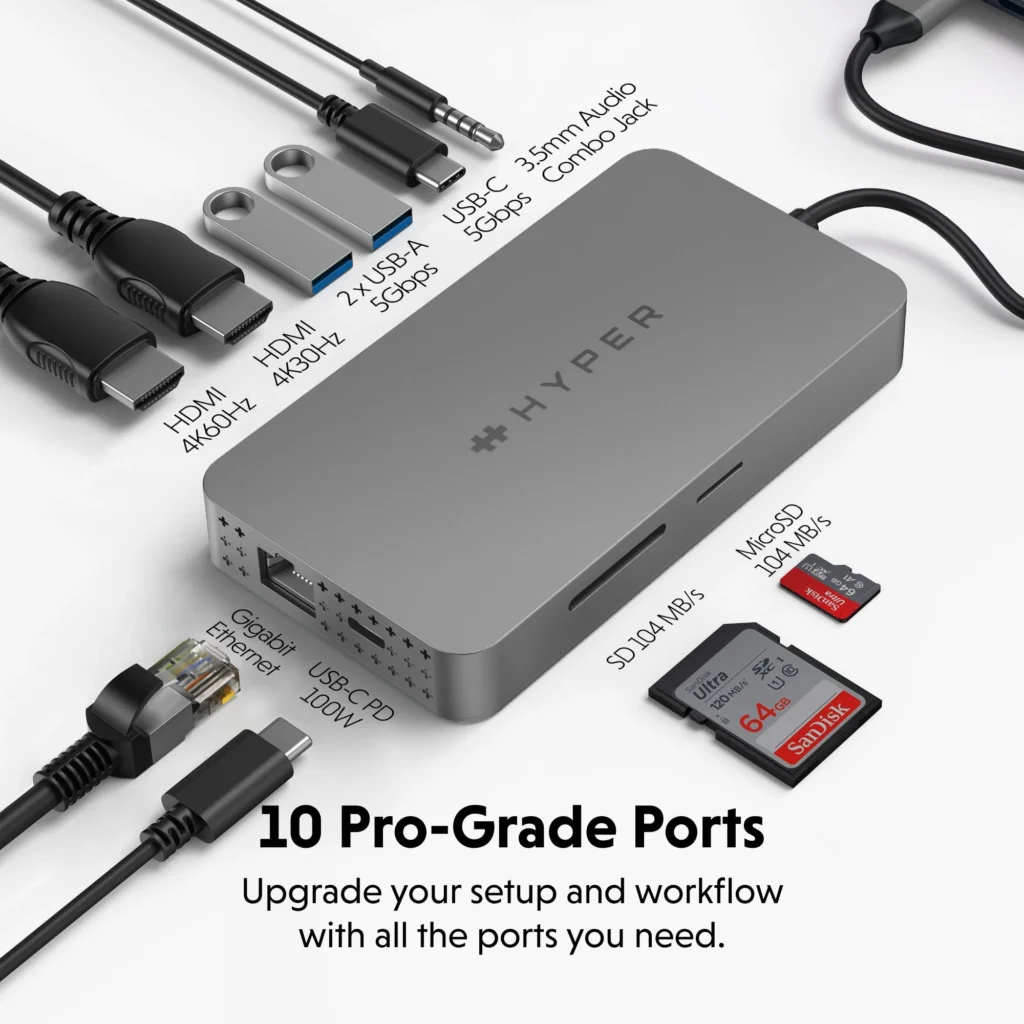
Verdict: The Problem Solver for M1/M2 Air Dual Displays
The HyperDrive Dual 4K hub is a specialised tool designed to overcome the hardware limitations of the base M1 and M2 chips. Unlike standard hubs, it integrates Silicon Motion InstantView technology to drive two extended displays from a single USB-C connection.14
How It Works
One HDMI port functions natively via the MacBook’s GPU (Alt Mode). The second HDMI port uses a built-in Silicon Motion chip to compress video data and send it over the USB data protocol. The hub then decodes this signal to HDMI. This allows an M1 or M2 MacBook Air to run two distinct external screens, a feat normally impossible without a much more expensive DisplayLink dock.38
Performance and Trade-offs
- Pros: It works seamlessly without complex driver installation (the software is embedded on the hub). It provides a decent port array, including Gigabit Ethernet and 100W PD.
- Cons: The software-driven second display has limitations. It cannot play HDCP-protected content (e.g., Netflix, Disney+) on that specific screen—the video will be blacked out. Furthermore, the refresh rate on the second screen may be limited to 30Hz at 4K or 60Hz at 1080p. It also consumes slightly more CPU resources than a native connection.39
Best For: M1 and M2 MacBook Air owners who absolutely require a dual-monitor setup and are willing to accept the limitations of software-driven video.
8. Baseus Joystar 7-in-1 USB-C Hub
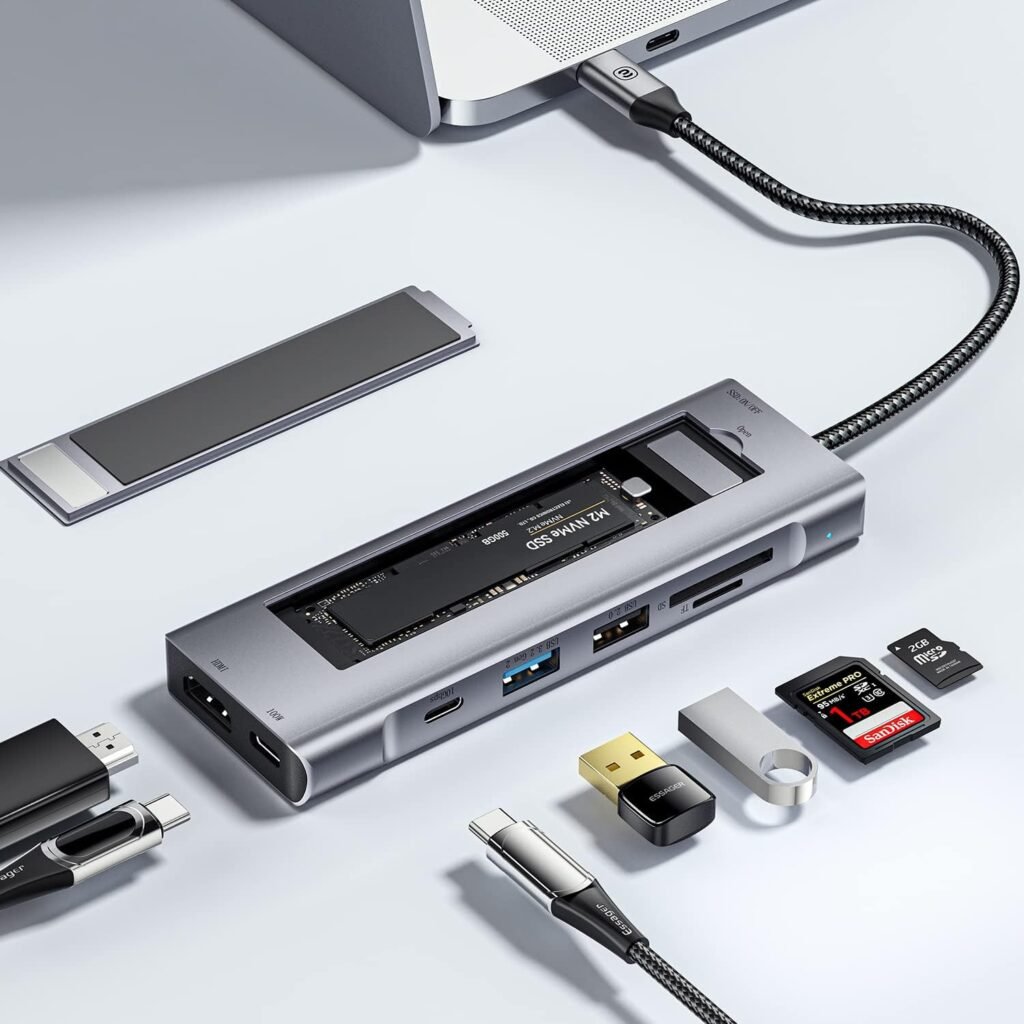
Verdict: The Stylish Budget Contender with a Privacy Twist
Baseus continues to disrupt the market with accessories that look far more expensive than they are. The Joystar 7-in-1 offers a compelling feature set for a price that often undercuts the competition on Amazon UK and eBay.40
Unique Features
- Privacy Switch: The hub features a prominent physical button that instantly cuts the HDMI signal. This “Panic Button” is incredibly useful for presenters who need to hide sensitive information on a shared screen quickly without unplugging cables.42
- 4K 60Hz for Less: It is one of the cheapest hubs on the market to offer true 4K 60Hz output, bringing high-fidelity video to the budget segment.
Build and Reliability
While the design is striking, utilising a mix of tempered glass and alloy, long-term reliability reports are mixed compared to Anker or Plugable. Some users report that the Ethernet port (often using a Realtek chip) can be finicky with certain network switches. However, for the price, the feature-to-cost ratio is high.
Best For: Budget-conscious users who want 4K 60Hz and appreciate novel features like the privacy button.
9. Satechi Pro Hub Max / Slim
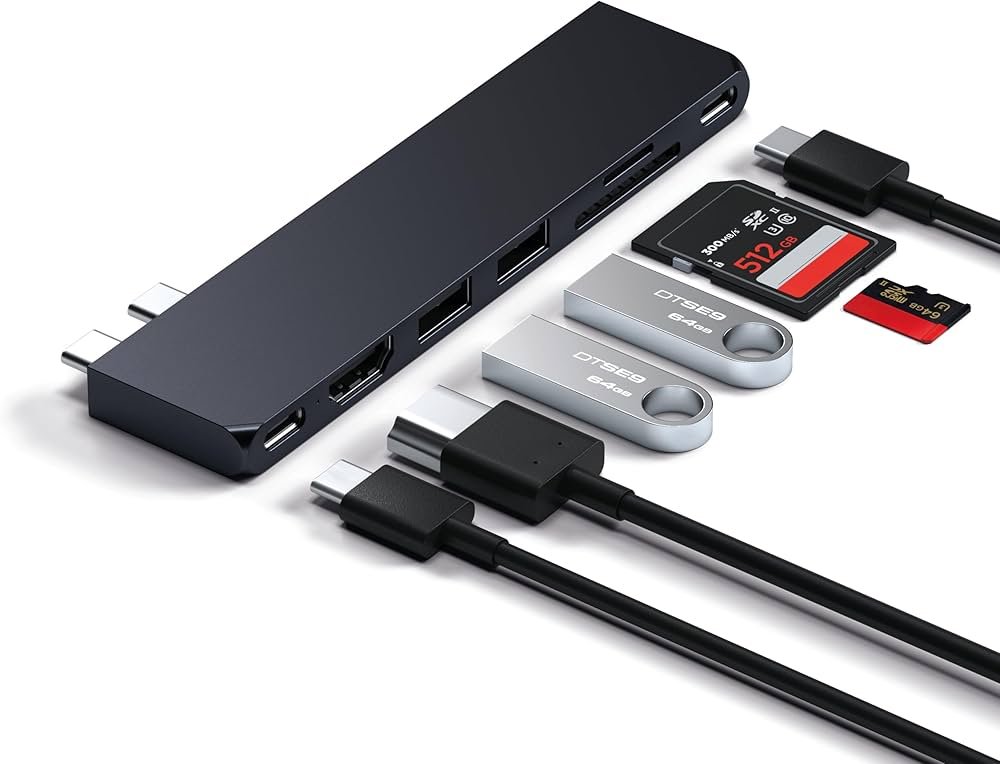
Verdict: The Aesthetic Purist’s Choice
The Satechi Pro Hub Max is unique in that it lacks a cable entirely. It features two male USB-C connectors that plug directly into the side of the MacBook Air, sitting flush against the chassis. This creates a seamless, integrated look that appeals to minimalist sensibilities.43
Design and Usability
The “flush mount” design is beautiful but comes with a mechanical risk. Because the hub is rigid, any downward pressure on the far end of the hub acts as a lever, potentially damaging the MacBook’s USB-C ports. Users must be extremely careful when plugging and unplugging peripherals.
Performance
By occupying both ports, the hub can pass through the full capabilities of one port (USB 4 / Thunderbolt) while expanding the other. This means you retain high-speed charging and video output while gaining Ethernet, HDMI, and USB-A ports. It also includes a cleverly placed audio jack, replacing the one that might block on certain MacBook Pro models (though less of an issue on the Air).
Best For: Design-conscious users who despise cable clutter and use their laptop primarily on a flat, stable desk.
10. EZQuest Multimedia Hub (Gen 2)
Verdict: The Legacy Connectivity Specialist
EZQuest may not have the brand recognition of Anker, but they produce over-engineered hubs favoured by IT professionals. The Multimedia Hub Gen 2 is notable for its focus on legacy support and signal integrity.45
Technical Excellence
- EMI Shielding: Cheap hubs often leak radio frequency interference that kills 2.4GHz Wi-Fi and Bluetooth signals. EZQuest hubs are heavily shielded to prevent this, ensuring your wireless mouse doesn’t stutter when a hard drive is plugged in.
- Legacy Ports: It prioritises a high density of USB-A ports, making it ideal for users with older printers, scanners, and drives. The cable is reinforced and longer than average, adding to its durability.
Best For: Users in environments with high wireless interference or those with a significant number of legacy USB-A devices.
Buying Guide: Tailoring the Choice to Your Persona
Navigating the specifications requires mapping your specific needs to the hardware capabilities. Below are tailored recommendations based on common user profiles.
1. The Student / Academic
- Primary Needs: Portability, connecting to HDMI projectors in lecture halls, durability, and low cost.
- Avoid: Expensive Thunderbolt docks (overkill); hubs with short, fragile cables.
- Recommendation: Plugable 7-in-1 or Baseus Joystar. The lack of 4K60Hz is irrelevant for projector slides, and the lower cost means it’s less painful if lost in a library.
2. The Corporate Remote Worker
- Primary Needs: Stability for Zoom/Teams calls (Ethernet), dual monitor support, ergonomic setup.
- M3 User: Belkin Connect Core Hub or UGREEN Revodok. Use the M3’s clamshell mode for dual screens.
- M1/M2 User: HyperDrive Dual 4K. The only way to get dual screens without buying a new laptop.
- Critical Feature: Gigabit Ethernet. Wi-Fi is convenient, but wired Ethernet prevents “unstable connection” warnings during critical meetings.
3. The Professional Photographer / Videographer
- Primary Needs: UHS-II SD card speed, colour-accurate 4K60Hz (or higher) output, fast scratch disk access.
- Avoid: Anker 555 or UGREEN Revodok (UHS-I readers will throttle workflow).
- Recommendation: Satechi USB-C Multiport V3 or CalDigit TS4. Time saved transferring 100GB of RAW files justifies the premium price immediately.
- Note: Ensure your external SSDs are USB 3.2 Gen 2 (10Gbps) compatible to match these hubs.
4. The “One Cable” Minimalist
- Primary Needs: Docking the Mac and having it charge, connect to the network, screen, and speakers with a single plug.
Recommendation: CalDigit TS4. It provides 98W charging, meaning you can leave your Apple MagSafe charger in your travel bag.
Troubleshooting & FAQ
Ensure two conditions are met:
- Lid Closed: The M3 Air must be in clamshell mode (lid closed) to drive two external displays via a standard dock.
- Power & Peripherals: The Mac must be plugged into power and have an external keyboard/mouse connected to wake the screens.
Note: If the lid is open, the M3 Air supports only one external display.
This can be caused by the hub’s controller chip (often Realtek) conflicting with macOS.
- Fix: Go to System Settings > Network. Delete the Ethernet service and re-add it.
- Hardware Fix: Ensure your Ethernet cable is Cat5e or Cat6. Old Cat5 cables are limited to 100Mbps.
Aluminium hubs are designed to get hot (40°C-50°C). The metal case is the heatsink. If it is cool to the touch while under load, it actually means heat is trapped inside, which is worse for the electronics. As long as it is not burning your skin, it is operating within spec. Do not cover the hub with papers or cloth.
Yes, via the PD (Power Delivery) port. However, the hub “taxes” the power. If you use a 30W charger, the hub takes ~15W, leaving only 15W for the Mac (slow charging).
- Recommendation: Buy a 65W or 100W USB-C charger for the hub. This ensures the MacBook receives its maximum supported charge rate even after the hub takes its share.
For Thunderbolt docks (like the CalDigit TS4), you must use the included cable or a certified Thunderbolt 4 cable. A standard USB-C charging cable fits the port but will throttle speeds to USB 2.0 (480Mbps) and won’t carry video. Always check for the “bolt” logo and the number “4” on the cable connector.
Final Verdict
The “best” hub is a function of your specific constraints: budget, desk space, and chip generation.
- For 90% of UK users, the UGREEN Revodok Pro 109 (~£50) is the correct choice. It modernises the I/O with 10Gbps ports and smooth 4K60Hz video without the high cost of Thunderbolt.
- For M1/M2 users needing dual screens, the HyperDrive Dual 4K (~£199) is the only hardware solution that bypasses the single-display limit elegantly.
- For power users and M3 clamshell setups, the CalDigit TS4 (~£355) is an investment in stability and bandwidth that outlasts the laptop itself.
Choose wisely, and reclaim the connectivity that your workflow demands.